
Fill a PDF form by entering values in its actual fields, saving a separate completed copy and reopening that copy to check every entry. Do not rely only on what appears before saving.
First confirm that the document has interactive fields. A page can look like a form while containing only drawn lines and boxes.
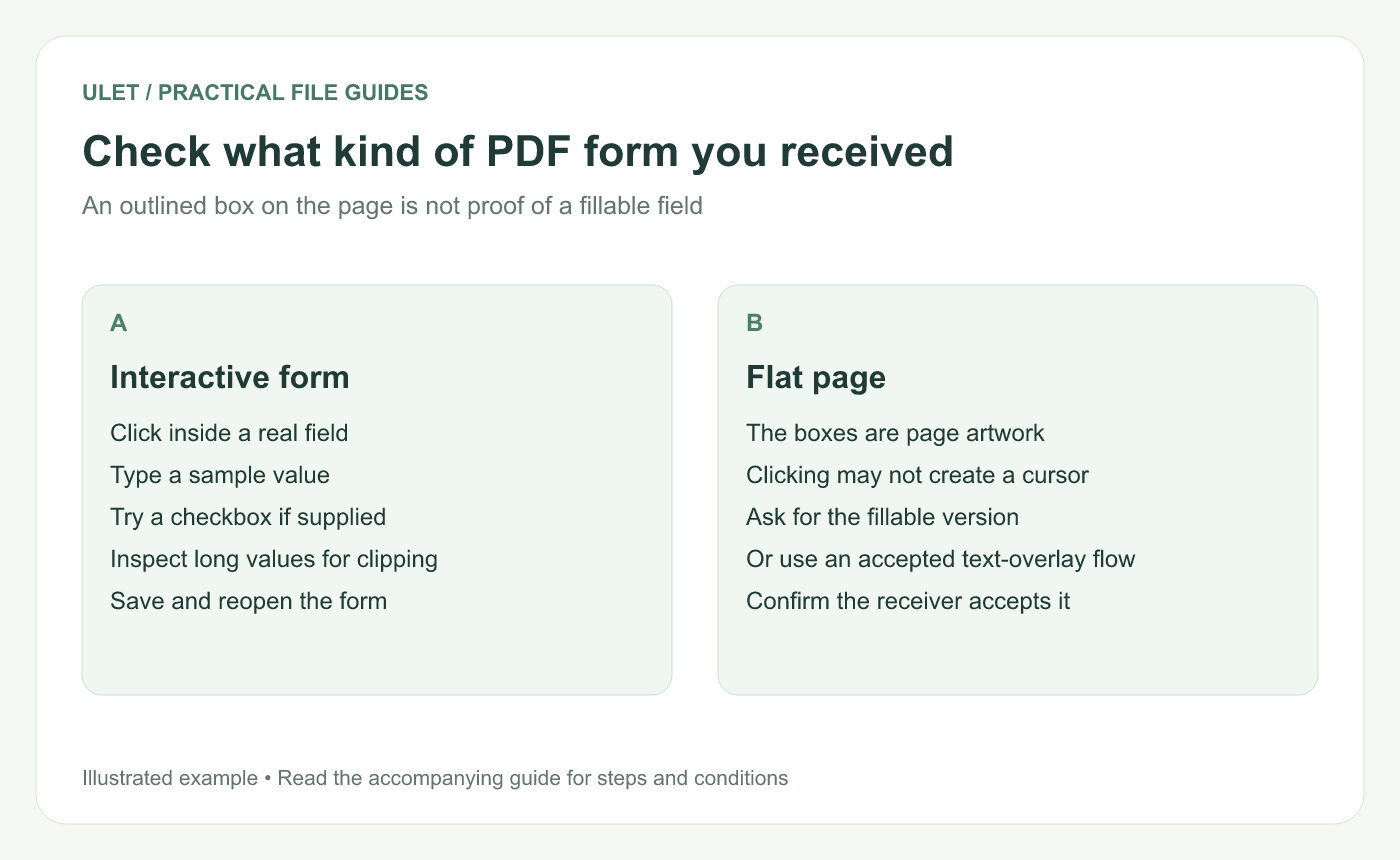
Check what kind of PDF form you received. Original instructional illustration; sample records and layouts are examples, not software screenshots.
Check whether the fields are interactive
Open the PDF in Ulet and try the form-filling controls on a sample field. A real text field should accept an entry; a checkbox should offer the corresponding choice when supported by the form.
Adobe distinguishes interactive forms with defined fields from flat forms without them. That distinction explains why clicking a printed-looking box does not always let you type. PDF form types.
For a flat page, ask for the intended fillable file or confirm an accepted text-overlay workflow with the receiver. Text placed over a page is not automatically a real form field.
Test a short set of entries
Field | Illustrative value | What to inspect |
|---|---|---|
Name | Sample Reader | All characters remain visible |
Request ID | R-014 | Characters match exactly |
Date | 12 November 2026 | The format follows the form's instruction |
Contact preference | The intended choice is selected |
Use fictional values for the test. Replace them with the requested information only after you know how the form behaves.
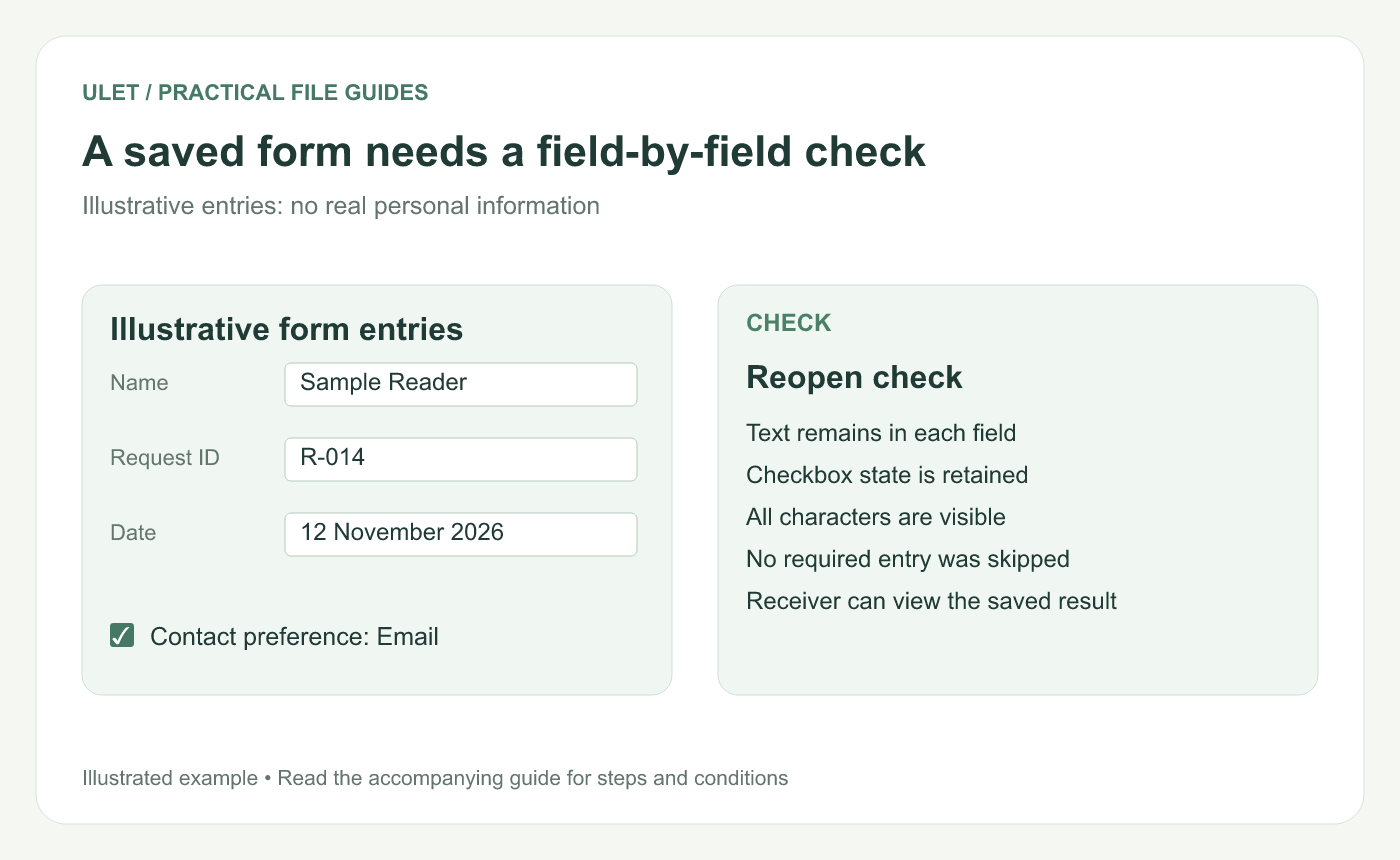
A saved form needs a field-by-field check. Original instructional illustration; sample records and layouts are examples, not software screenshots.
Save and reopen the completed copy
Save the filled form to an identifiable local PDF.
Close it and open that saved file again.
Inspect every completed text field and choice.
Check long text, punctuation and any non-Latin characters.
Confirm the original blank form is still available.
If the form must work in a particular receiving viewer or submission portal, check a sample there too. A form with scripts, validation or calculated fields may depend on behavior beyond simple text entry.
Check the version you actually deliver
Confirm the filename and location before attaching or submitting it. If the receiver requires a particular form version, use that version instead of recreating its layout.
If a field is read-only or the file blocks changes, ask the issuer for instructions. Do not invent a value just to satisfy a field whose meaning is unclear.
Ulet provides local PDF work within its all-in-one app on Windows and macOS. Basic editing is free; test the specific form's save behavior with the small sample before completing the entire document.


