
The equipment sheet has a subtotal under the last rental charge. On the printed proof, both rows look like ordinary line items. A single top border gives the subtotal a clear edge while keeping the surrounding grid quiet.
In this example, the subtotal label starts at B12, the amount is in D12, and the approval note sits in E12. Select B12:D12. On Home, open the border menu and choose Top border. The selection ends before the note.
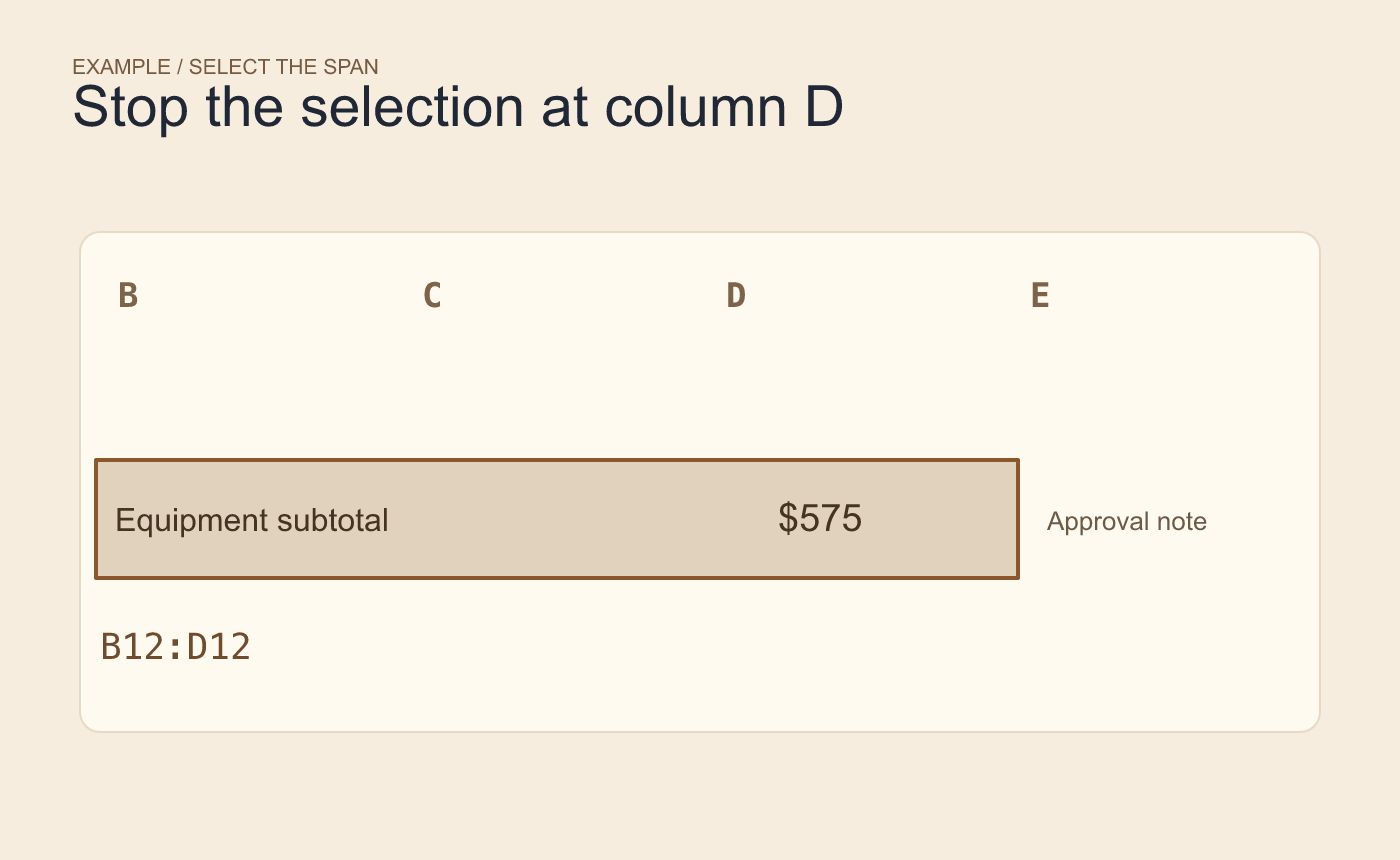
Example selection. The line spans the label and the number.
Inspect the proof and the calculation
Look across the bottom of row 11 and the top of row 12. If an adjacent row already has a bottom border, check the printed appearance for a heavy or uneven separator. The print preview should show one horizontal rule above the subtotal, with the approval note outside its span.
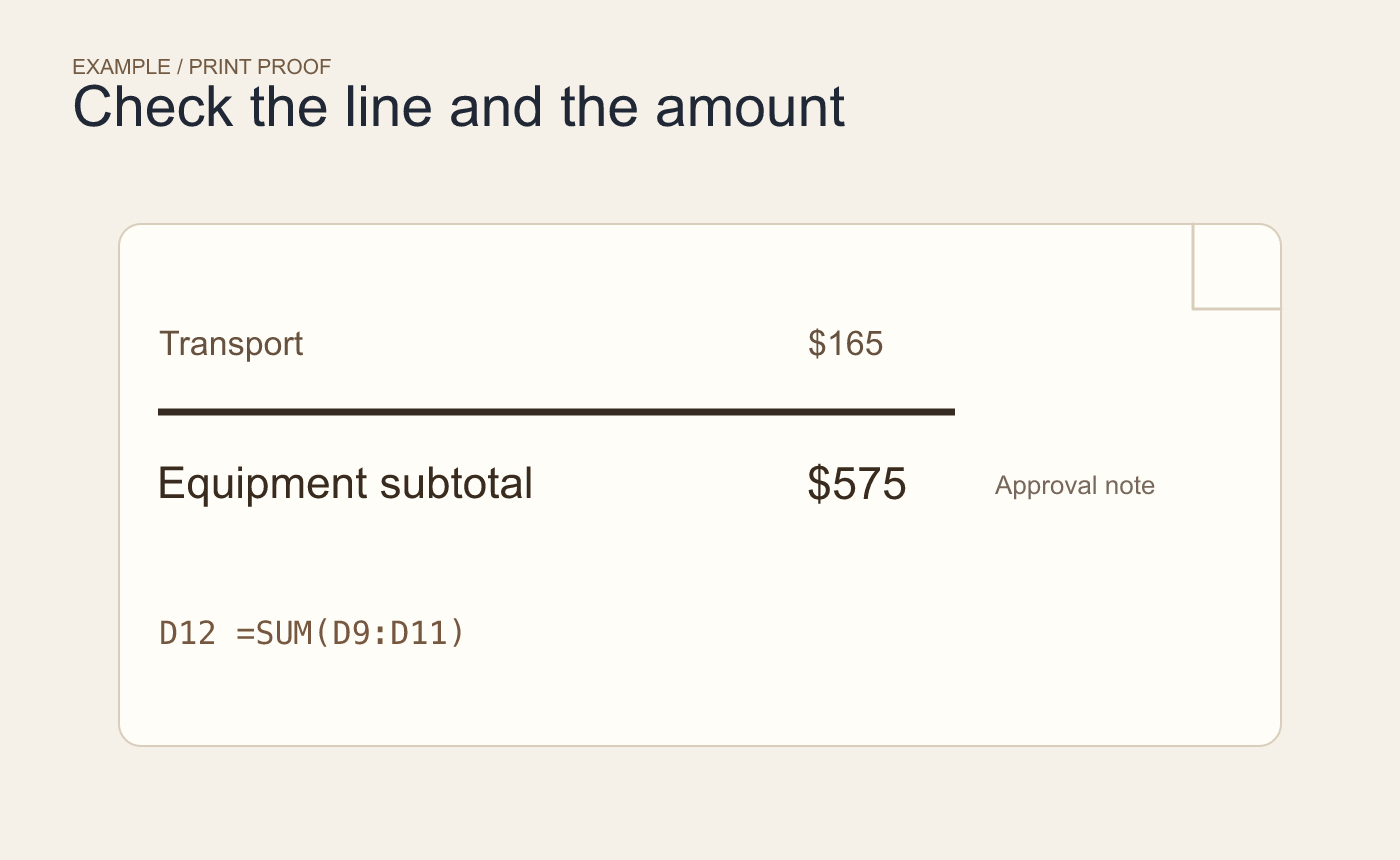
Example proof. Check the right edge and confirm that the amount still reads $575.
Save the XLSX and reopen it. Check that D12 still uses =SUM(D9:D11) and that 230, 180 and 165 produce $575. If the next version adds a cost column, adjust the border span along with the subtotal layout.



