
If a column contains product IDs such as 00127, treat the values as identifiers. Set up the destination cells as text before typing or pasting, then check the characters after saving and importing.
A number that merely looks like an ID because of its display format can behave differently during export.
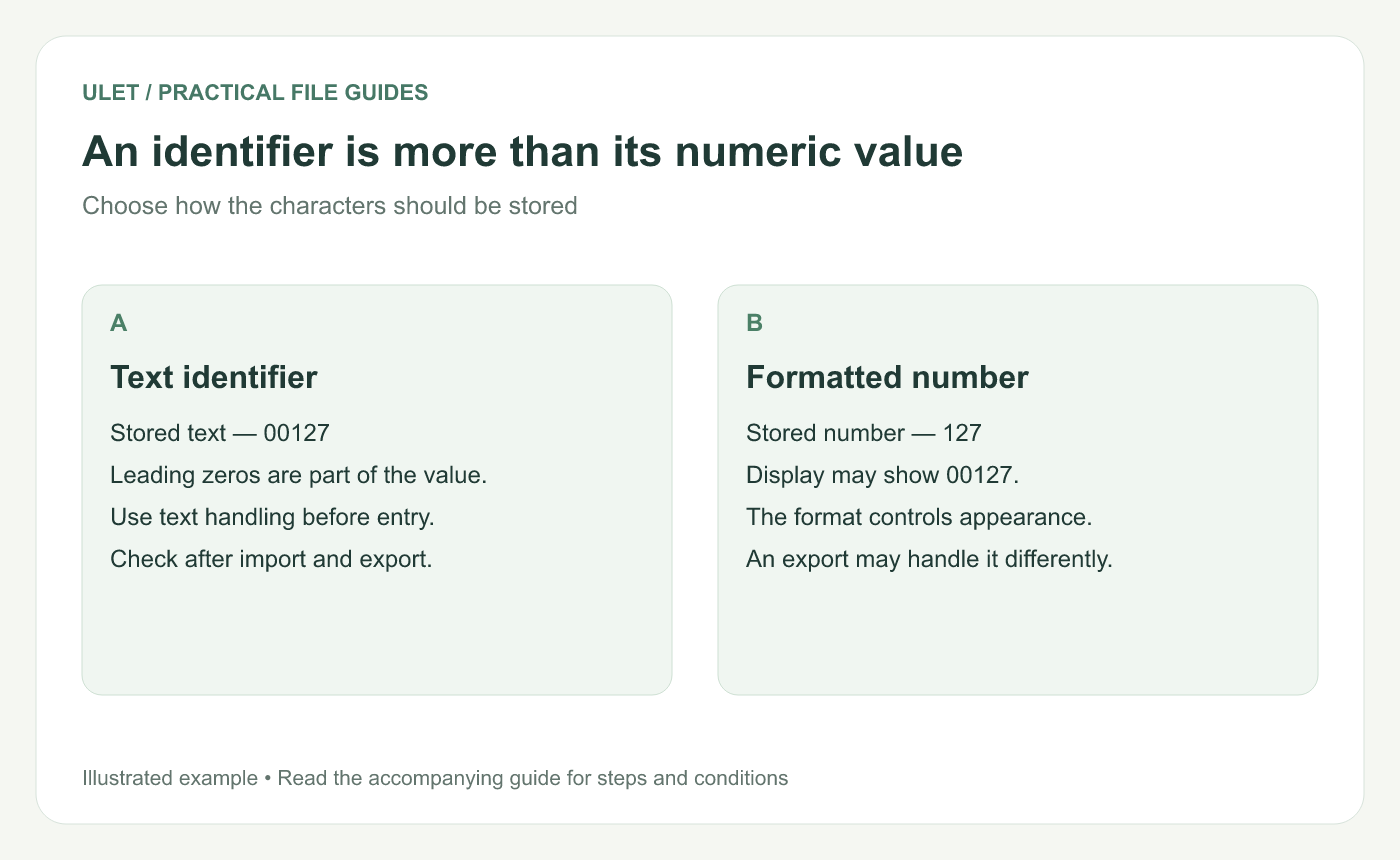
Choose how the characters should be stored. Original instructional illustration.
Choose the storage type before entering data
Use the editor's cell-format controls to set an identifier column to Text before entering a sample. In Excel, Microsoft recommends applying Text format before typing or pasting values whose leading zeros must be retained. Microsoft's text-format guide.
Try a small sample with the same kinds of identifiers as the real source. Check the value in the cell editor or formula bar as well as its appearance on the sheet.
Understand what a display format changes
The numeric value 127 can be displayed as 00127 using an appropriate five-digit number format. That may be useful when the code's length is defined, but the stored value is still numeric.
It also cannot tell you whether an original identifier had one, two or more leading zeros. If conversion has already lost information, go back to the original source.
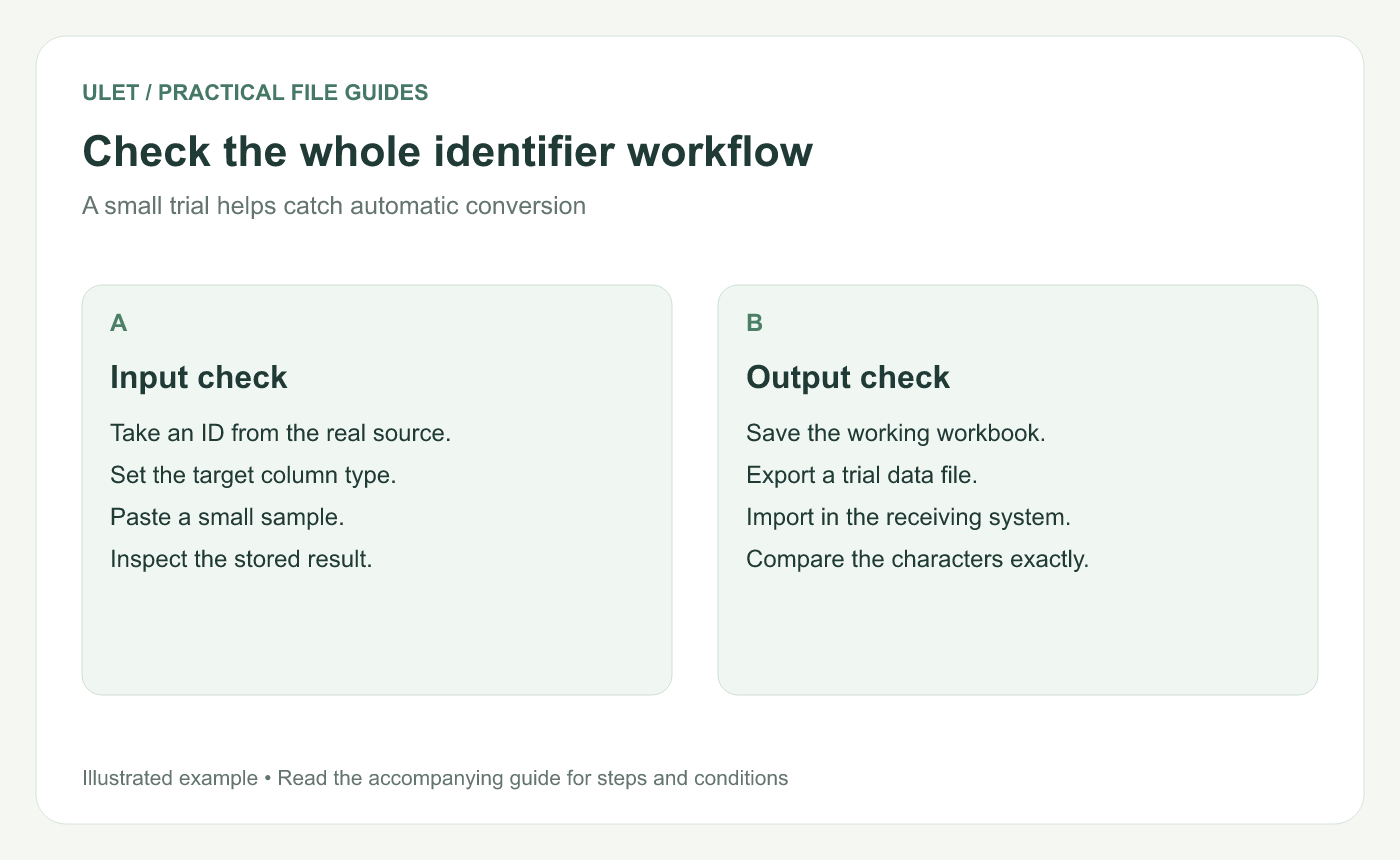
A small trial helps catch automatic conversion. Original instructional illustration.
Check the receiving system
Save an editable workbook containing the intended values.
Create a small trial export when an exchange file is needed.
Import it into the actual receiving system.
Set the ID column's import type where that control is available.
Compare the identifier characters exactly.
A CSV can contain the text 00127 while an importer still decides to read it as the number 127. The CSV and XLSX guide explains why checking both ends of the workflow matters.
Keep quantities and identifiers distinct
A quantity needs arithmetic. An identifier needs faithful characters. Name those columns clearly so the next person understands which type of value belongs in each.
Ulet provides local spreadsheet editing on Windows and macOS. Check the sample in the version and workflow you use before changing a large data table. Open the workbook in Ulet.


