
To write Markdown locally, create or open a .md file in a desktop editor, enter your text, and use a preview to check the formatting. Ulet provides free Markdown editing on Windows and macOS, with visual, source, and split views. Your writing can stay in a folder on your computer while you work.
This guide uses a small meeting-notes file to explain headings, lists, links, and images. You will finish with an editable Markdown file and a simple way to check that its formatting and linked resources still work.
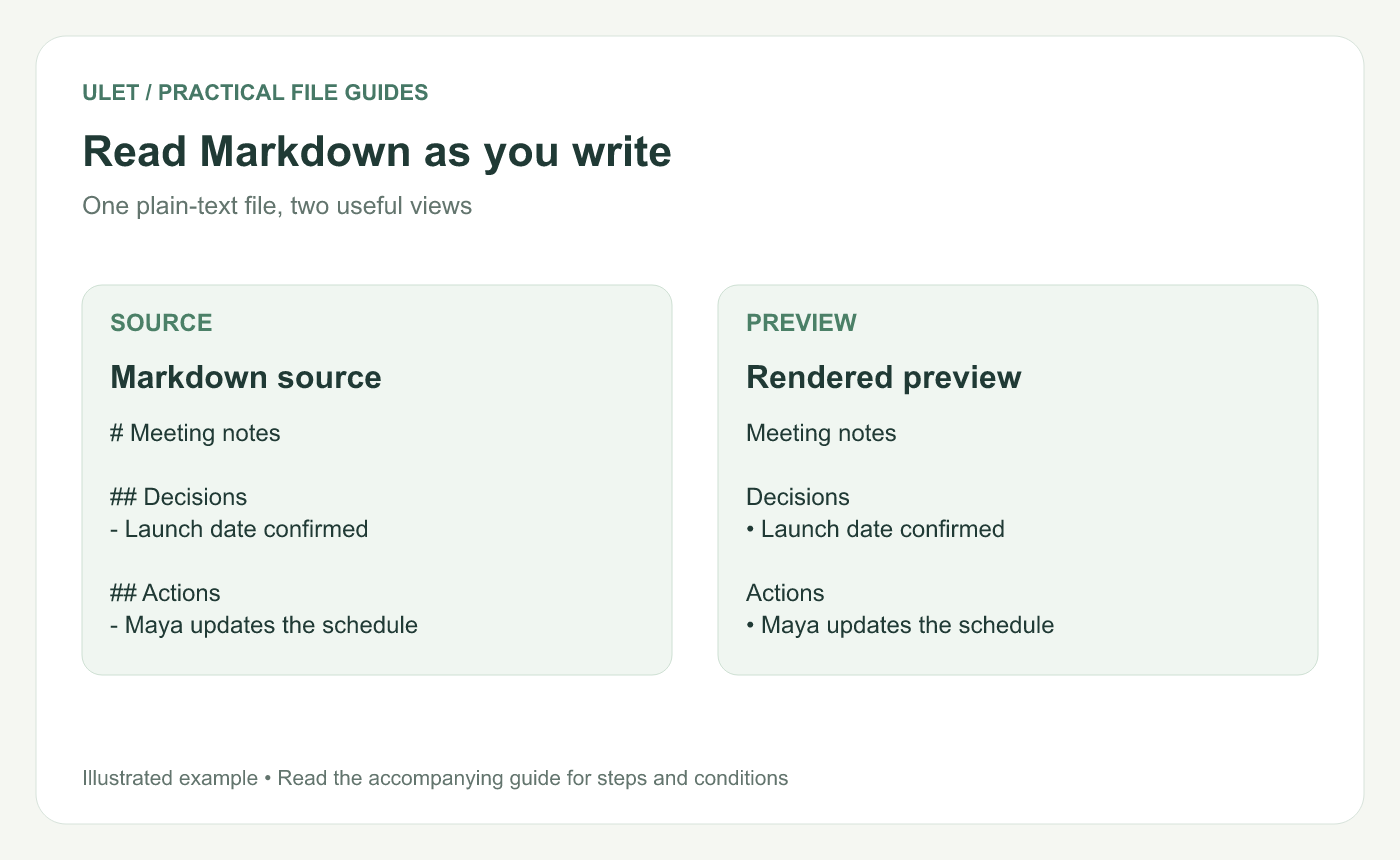
An original syntax illustration. It demonstrates the relationship between source text and preview, rather than depicting a software screenshot.
What you need before writing Markdown
Install Ulet and choose a local folder for your notes. Create a Markdown document or open an existing .md file from Home. If a file is stored only in a cloud service, make it available on the computer before going offline.
A Markdown file stores text and formatting symbols. It can refer to images and other files, but those resources usually live separately. This makes the folder structure part of the writing workflow.
Choose the editing view that fits the task
View | Useful for | What to check |
|---|---|---|
Visual editing | Writing with familiar formatting controls | Whether headings, lists, and emphasis have the intended meaning |
Source editing | Seeing and changing Markdown symbols directly | Spaces, punctuation, file paths, and code fences |
Split view | Comparing the source with its rendered result | Which source change produced the visible formatting |
For a first file, source and preview together make it easier to understand the syntax. Visual editing is useful when you want to focus on the wording and use formatting controls as you write. Ulet describes these editing options on its Markdown product page. Explore Ulet Markdown Editor.
Write a small meeting-notes example
Save a file as meeting-notes.md and enter the following example. The names and decisions are sample content that you can replace.
# Meeting notes

Date — 5 November 2026

## Decisions
- Launch date confirmed.
- Draft review moves to Thursday.

## Actions
- Maya updates the schedule.
- Leo checks the presentation.

## Reference
[Project overview](project-overview.md)
In the preview, the first line should appear as the document's main heading. Decisions, Actions, and Reference should appear as section headings. Each line starting with a hyphen and a space should become a list item.
Use headings to describe the structure
Write # followed by a space for the main heading and ## for a section. Use ### for a subsection when a section needs one. Clear heading levels make a longer file easier to scan and help readers understand which ideas belong together.
Use lists for actions and short collections
Start an unordered list item with - . For an ordered sequence, use numbers followed by a period and a space. Keep action items specific enough that another reader knows what happens next.
Write links with meaningful text
A Markdown link combines a label and a destination, such as [Project overview](project-overview.md). The example expects another file named project-overview.md beside the meeting notes. Create that file if you want the sample link to open a real destination.
Core Markdown syntax for headings, lists, links, and images is documented in the original Markdown guide. Preview behavior can vary between editors, especially for extensions beyond the core syntax. Markdown syntax reference.
Add an image without losing its file path
Create an images folder beside your Markdown file and place an image named board.png inside it. Then add this line to your note.
The text between square brackets describes the image. The path in parentheses tells the editor where to find it. In this example, the path starts in the folder containing the Markdown document.
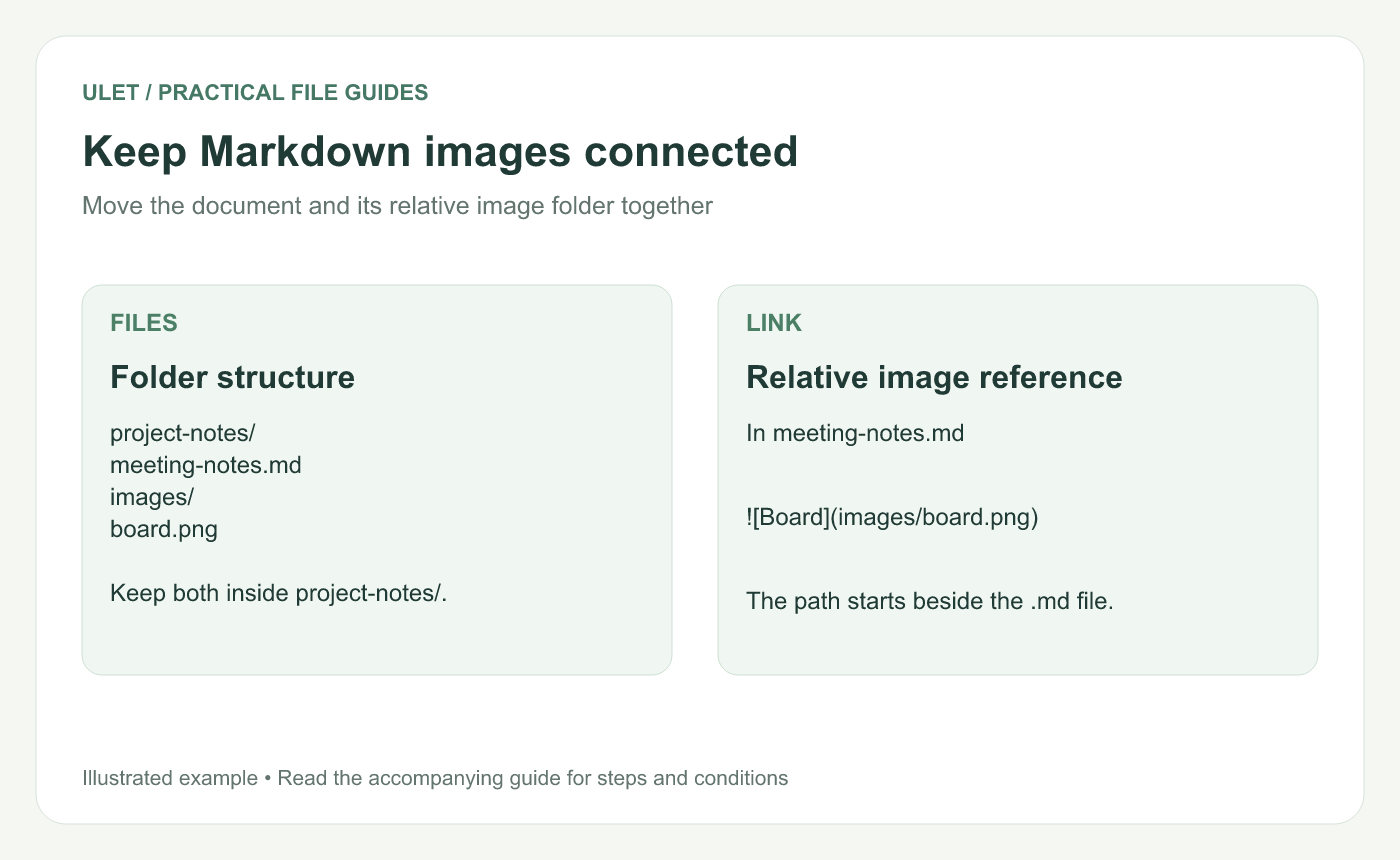
Keep the note and its image folder together so a relative path can continue to resolve.
If you move only meeting-notes.md, the relative image path can stop working. Move the containing project folder, including its image folder, then reopen the note from the new location and check the preview.
Check the preview before saving a finished note
Confirm that each heading describes the section beneath it.
Check lists for accidental indentation or missing spaces.
Open the links that a reader will need.
Confirm that every image loads from the intended folder.
Save the file, close its tab, and reopen the saved copy.
If the preview looks unexpected, inspect the nearby source. Common causes include a missing space after a heading marker, an unmatched bracket in a link, or an image filename that differs from the path.
Keep Markdown as the editable source
A Markdown file is useful when you want to keep the writing in a portable text format. Ulet also provides Word and PDF export options for Markdown. When you export, review the resulting pages separately, including long tables, code blocks, images, and page breaks. Keep the source file and its resources available for later edits. Ulet Markdown editing and export options.
Frequently asked questions
Can I write Markdown without an internet connection?
Yes. With a desktop editor installed and the required files stored locally, you can continue writing offline. Remote images and online links still need a connection when you open them.
Does a Markdown file include its images?
Usually the file contains references to images stored elsewhere. Keep relative image folders with the document when moving or sharing it.
Can I edit Markdown without typing every symbol?
Ulet includes visual editing controls as well as source and split views. You can choose the view that fits the part of the task you are working on.
For a local writing workflow, start with a small file, check its preview, and keep its linked resources together. Get Ulet for Windows or macOS.



