
Crop PDF margins by testing one page, inspecting all four edges and applying the crop only to the intended pages. Keep an uncropped copy until you have reviewed the result.
Before trimming blank space, check for page numbers, footnotes, figure labels and annotations close to the boundary.
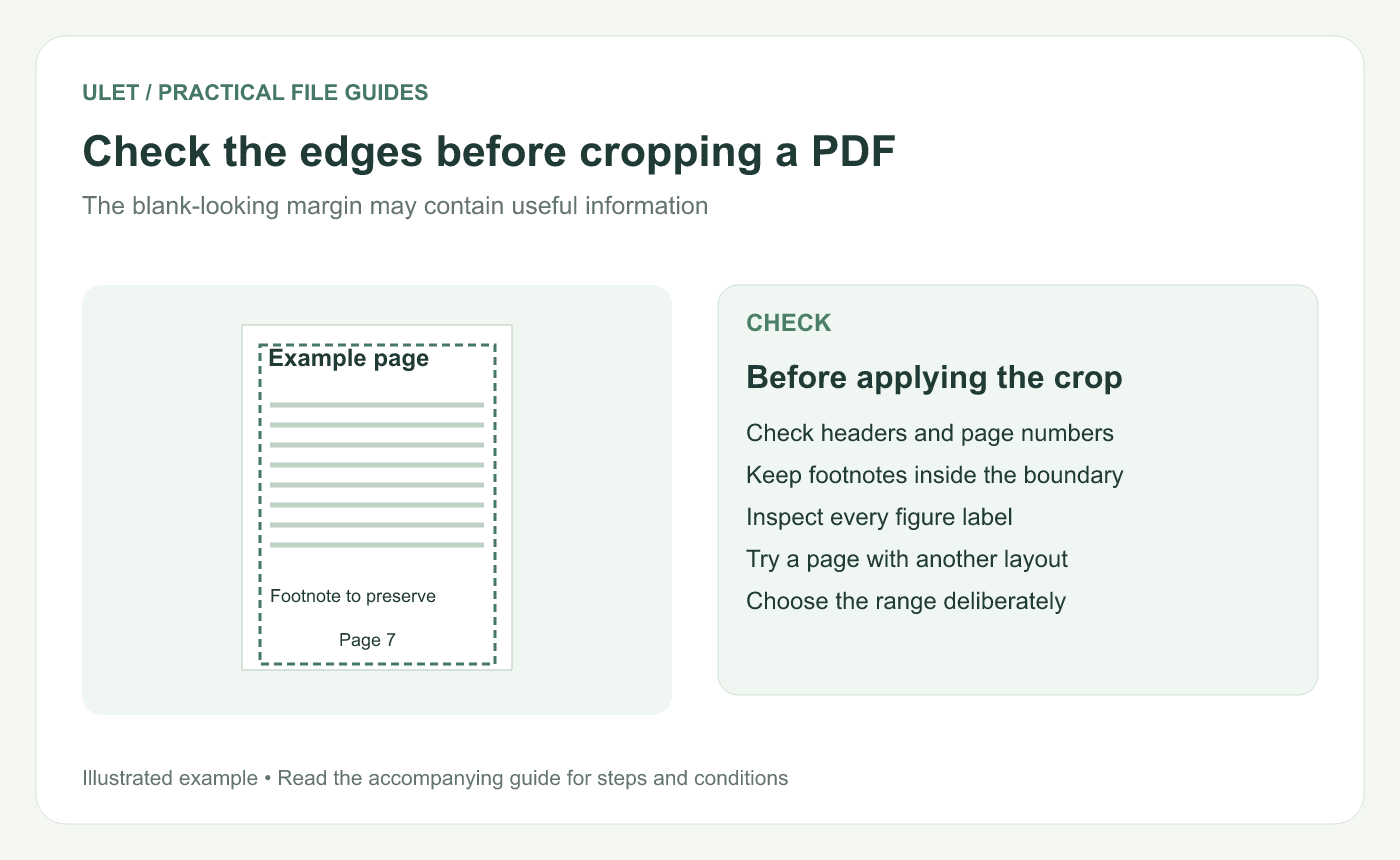
Check the edges before cropping a PDF. Original instructional illustration; example text and diagrams are not software screenshots.
Decide why the page needs cropping
A crop can make a scanned page easier to view by removing unnecessary surroundings. It can also change the visible dimensions of a page. Write down the result you want so you do not keep trimming merely to make the page look tighter.
For a mixed packet, identify which pages share a layout. A narrow body-text page and a wide table may need different boundaries.
Try a single representative page
Open the local PDF in Ulet and find the page to test.
Use the page-cropping controls to set the area you want to keep.
Check the rectangle against text and labels at every edge.
Apply it to that page before choosing an all-pages option.
Inspect the result at a readable zoom.
Ulet's current page-crop workflow offers a page selection and an option to apply the crop more broadly. Confirm that choice before applying it.
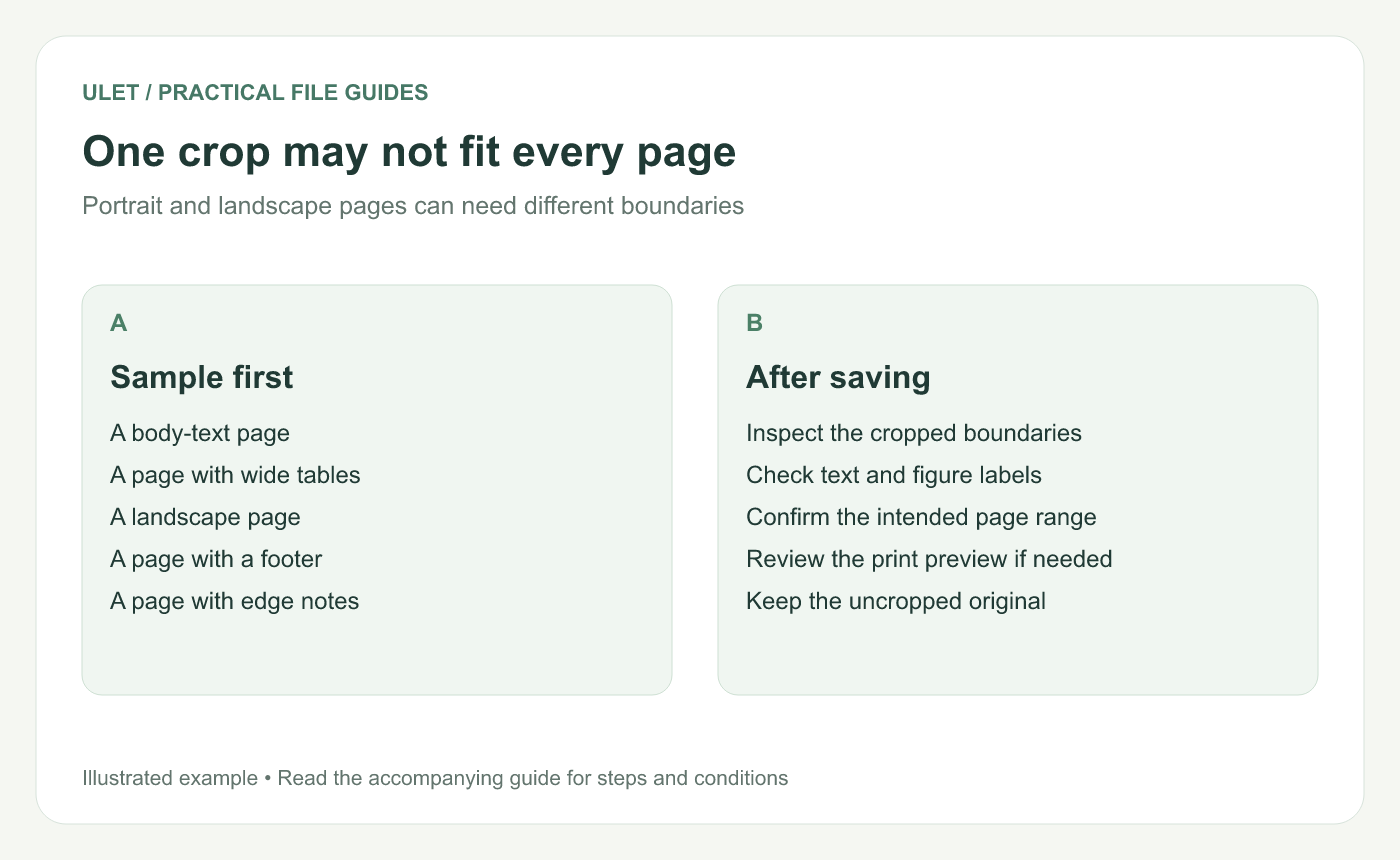
One crop may not fit every page. Original instructional illustration; example text and diagrams are not software screenshots.
Check other layouts before reusing the crop
Page feature | Why it needs checking |
|---|---|
Landscape table | Useful columns may extend farther sideways |
Footnote | Small text may sit below the usual body area |
Page number | A footer can look like empty margin at low zoom |
Scanned edge note | A handwritten detail may be outside the main text block |
If the same rectangle hides content on another page, use a separate crop for that layout rather than forcing one setting across the packet.
Understand what the crop changes
This workflow adjusts the visible page boundary. It is different from permanently removing document information. Adobe's page-cropping guidance describes controlling the displayed area through page boundaries. PDF page crop guide.
Do not use a visual crop as the method for removing information that must be deleted from a document.
Inspect the saved copy
Reopen the cropped PDF and check the affected pages, especially the first and last page in each selected group. Review the print preview if physical output matters, since the visible dimensions may now affect scaling.
Ulet supports local PDF work on Windows and macOS. Keep the original and the reviewed crop identifiable so you can compare the boundaries later.


