
You can open, edit, and save a DOCX file without installing Microsoft Word. On Windows and macOS, Ulet provides free local DOCX editing, so you can work on a document stored on your computer without uploading it. Other options include LibreOffice Writer for desktop editing, plus Word for the web and Google Docs for browser-based work.
To get started with Ulet, open your DOCX file, make your changes, and use Save or Save As to keep an editable DOCX copy. Before sharing it, reopen the saved file and check its text, fonts, tables, and page layout.
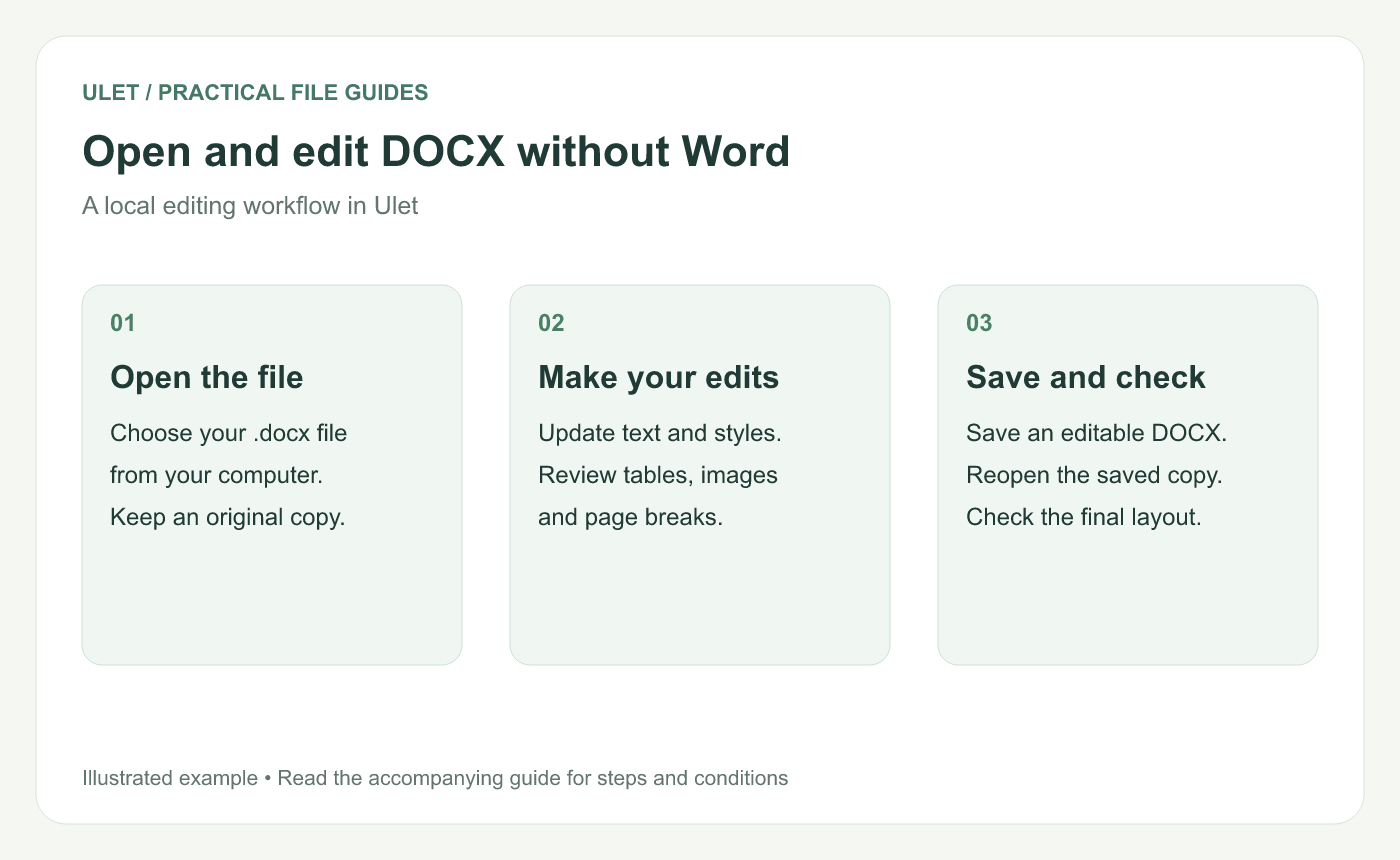
An original workflow illustration. Review the accompanying steps for file handling and saving details.
What is a DOCX file?
A DOCX file is a word-processing document that can contain text, headings, tables, images, and page formatting. The .docx extension is commonly associated with Microsoft Word, but several other editors can read and write this format.
Opening a document in a preview lets you read it. To change the text and save an editable copy, you need an editor that supports DOCX saving.
Which method should you choose?
Method | Where you edit | File handling | Useful when |
|---|---|---|---|
Ulet | Desktop app for Windows and macOS | Opens and saves local DOCX files | You want free local editing and an app that also handles spreadsheets, presentations, PDF, and Markdown |
LibreOffice Writer | Desktop app | Opens local files and can save in DOCX format | You want an open-source desktop word processor |
Word for the web | Web browser | Uses Microsoft account sign-in and online document storage | You want browser-based Word editing and online collaboration |
Google Docs | Web browser | Can edit uploaded Office files in Google Drive | You already use Google Drive and want to collaborate there |
Microsoft offers free access to Word on the web, and Google documents direct editing of Office files uploaded to Drive. LibreOffice documents support for opening and saving Microsoft Office formats. Microsoft 365 for the web, Google Drive Office editing, LibreOffice format support.
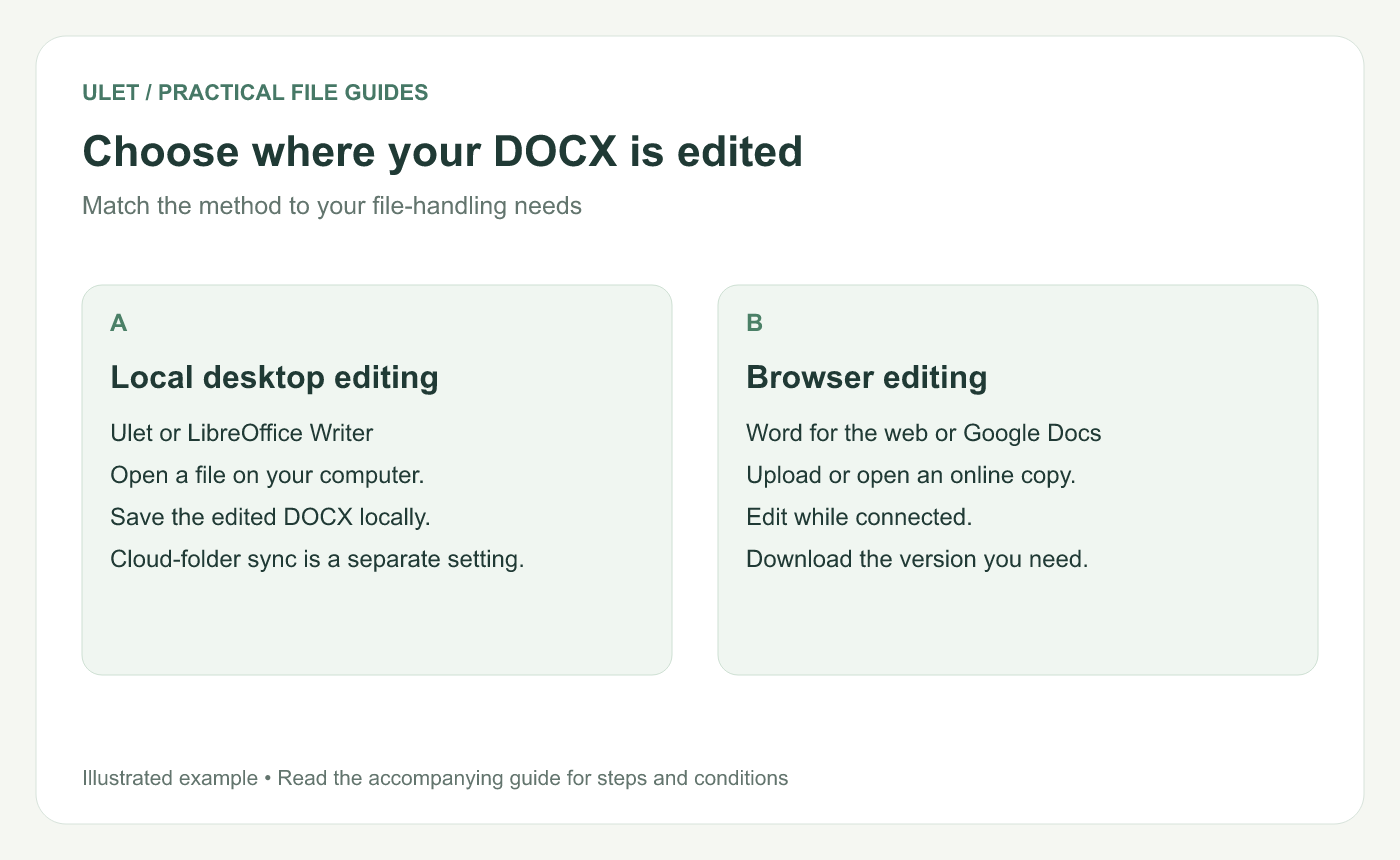
Choose a local or browser workflow according to where you want to work with the document.
How to open and edit a DOCX file locally with Ulet
Ulet is an all-in-one desktop office app for documents, spreadsheets, presentations, PDF, and Markdown. Its basic DOCX editing is free, and opening, editing, and saving local documents does not require uploading them to an online editor. Once Ulet is installed and your file is available on the computer, you can perform these local editing tasks offline.
1. Open your DOCX file
Install Ulet for Windows or macOS and launch the app. From Home, choose Open file, then select your .docx document.
For example, open a file named meeting-notes.docx from your Documents folder. If the file arrived as an email attachment, download it to your computer first.
2. Review the document before editing
Check the headings, paragraph spacing, images, tables, and page breaks. If you have a PDF reference or a preview from the sender, compare the parts where layout matters.
For an important original, use Save As to create a working copy such as meeting-notes-edited.docx. This gives your edits a separate filename.
3. Make your changes
Click in the document to edit its text. Use the ribbon to adjust text formatting, paragraphs, and page settings.
For a meeting-notes update, you might change the meeting date, add a decision under an existing heading, and correct an action owner's name. Keeping the existing paragraph styles can help the updated text fit the document's layout.
4. Save your document as DOCX
Use Save to save changes to the current file, or Save As to choose a different filename or location. Keep the .docx format when the recipient needs an editable Word-compatible document.
You can also save with Ctrl + S on Windows or Command + S on macOS.
5. Reopen and check the saved copy
Close the document tab, then open the file you just saved. Confirm that your changes are present and inspect the pages affected by your edits.
For the meeting-notes example, check that the updated date and new decision are visible, the action list is intact, and the filename ends in .docx. The saved file is then ready to attach to an email or place in your usual shared folder.
For screenshots and a check you can repeat with your own file, see how to open and save a DOCX in Ulet on Windows or Mac.
How to edit a DOCX file in a browser
A browser-based editor is useful when you have an internet connection and want to work with an online copy of your document.
Use Word for the web
Open Word for the web and sign in with your Microsoft account.
Upload your DOCX file using the available upload option, or open it from OneDrive.
Edit the document in the browser and allow the online copy to finish saving.
Use the download option to save a DOCX copy to your computer when you need a local file.
The free web version supports document editing, while some features work differently from desktop Word. Check the document's layout and any advanced elements before sharing the downloaded copy. Free Microsoft 365 web apps, Word browser and desktop differences.
Use Google Docs
Sign in to Google Drive and upload your DOCX file.
Open the uploaded file with Google Docs.
Edit the document in Office editing mode. Google saves changes to the original Office format.
Download the updated file when you need a local copy. If you converted it to a Google document, choose Microsoft Word
(.docx)from the download formats.
Google supports editing Office files directly in Drive. Converting a file to Google Docs creates a separate copy, so check which version you are editing before sending it to someone else. Google's guide to working with Office files.
How to use LibreOffice Writer for desktop editing
LibreOffice Writer is another desktop option for opening and saving DOCX files.
Open Writer and choose File > Open.
Select your DOCX file and make your changes.
Choose File > Save As and select the Word DOCX format from the file-type list.
If a format-confirmation message appears, keep the selected Word format when you need a DOCX file.
Reopen the saved document and review its formatting.
LibreOffice explains that complex Office formatting can require manual adjustment. Check tables, positioned objects, and other layout-sensitive elements when moving a document between editors. Opening and saving Office files, Office format conversion considerations.
What to check if the file will not open or looks different
Problem | What to check |
|---|---|
Double-clicking asks you to choose an app | Start a DOCX-capable editor and open the file from inside it. You can set a default app later. |
The document opens in a read-only preview | Use an editor with DOCX saving support. Also check whether the file or folder allows editing. |
Fonts or page breaks look different | Check whether the original fonts are installed, then review page size, margins, and paragraph spacing. |
A table or image has moved | Compare it with the original reference and review the nearby layout settings before saving. |
The file requests a password | Ask the sender for the password and confirm that your chosen editor supports that file's protection. |
The editor reports a damaged or unsupported file | Download the attachment again or ask the sender to provide a fresh DOCX copy. |
For a layout-sensitive document, ask the sender for a PDF reference alongside the editable DOCX. This gives you something to compare with when reviewing the saved result.
Frequently asked questions
Can I edit a DOCX file for free?
Yes. Ulet provides free basic DOCX editing on Windows and macOS. LibreOffice Writer is another free desktop option, and Microsoft offers a free version of Word on the web.
Can I edit a DOCX file without an internet connection?
Yes. With Ulet installed and the document stored locally, you can open, edit, and save the DOCX file offline. Download email attachments or cloud-only files before disconnecting.
Do I have to upload my document to edit it?
You can edit a local DOCX file in Ulet or LibreOffice Writer. The browser methods described above use online copies. If you save a local file in a cloud-synced folder, that folder's service may still sync it according to your settings.
Will the saved file look exactly the same in Microsoft Word?
The result depends on the document's fonts, layout, and features. Review complex tables, page breaks, and positioned objects, and check the final file in the recipient's editor when exact appearance matters.
Should I send DOCX or PDF?
Send DOCX when the recipient needs to edit the document. If they mainly need to read a fixed-layout version, send a PDF. You can provide both when editing and visual reference are useful.
Start editing your document in Ulet
For everyday DOCX work on Windows or macOS, Ulet offers free local editing alongside tools for spreadsheets, presentations, PDF, and Markdown. Open your document, make your changes, and save a DOCX copy in the folder you choose.
Open Ulet, choose Open file, and select your DOCX document to get started.


