
The Harbor Walk team asks for the route map, the volunteer roster and the pickup times. Your working folder also contains an older map, a draft roster and a photo folder. Check the selection before you copy it, when a stray click is still easy to undo.
Count the selection in the working folder
In Finder, open the working folder in List view. Choose View > Show Status Bar if the status bar is hidden. With the selection cleared, read the folder’s item count. Hold Command while clicking route-map.pdf, volunteer-roster.xlsx and pickup-times.docx. Look for a selection count of three in the status area.
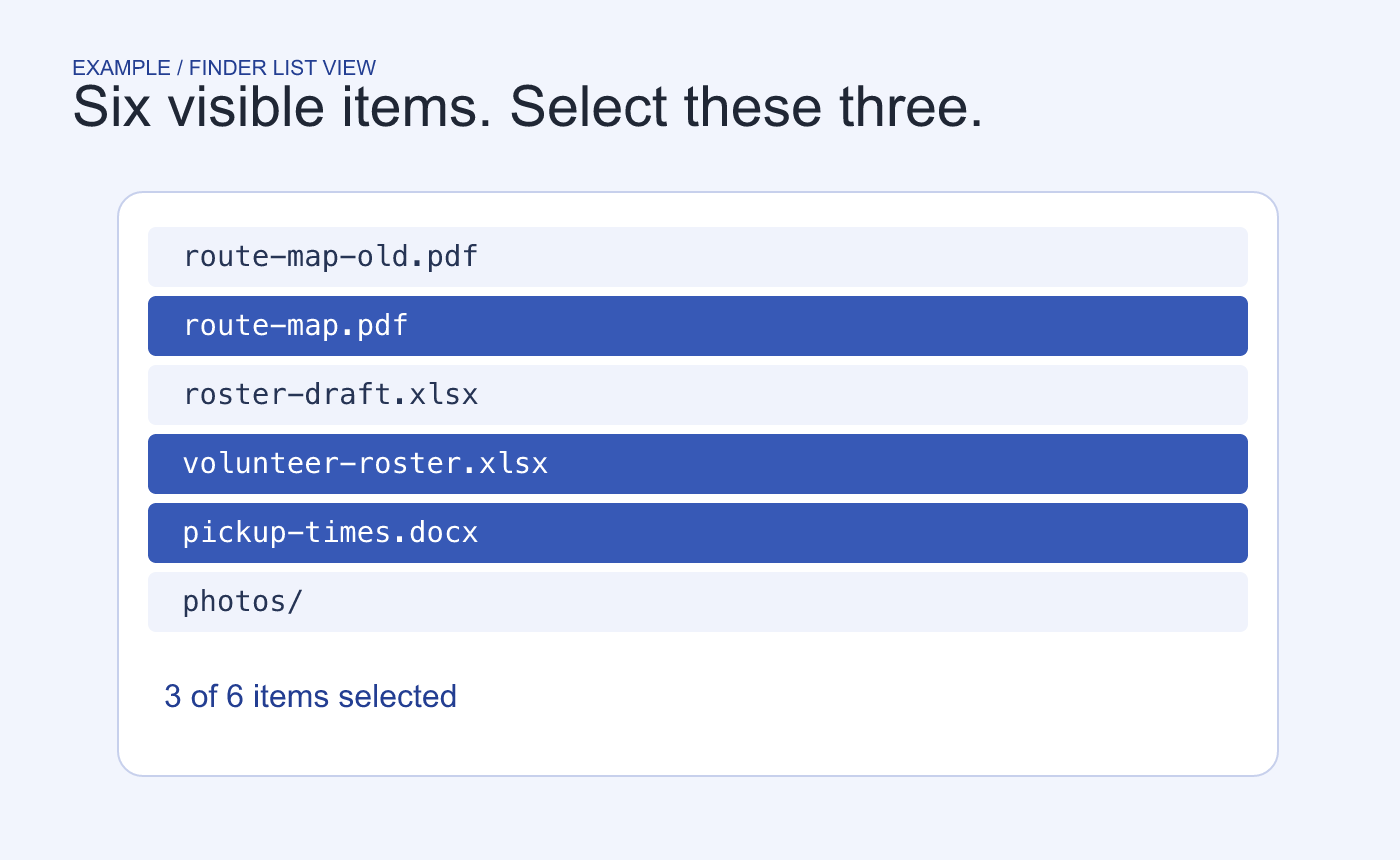
Illustrated selection. The folder contains six visible items, and the handoff requires three.
A matching count can still hide a wrong choice. Read the three highlighted names, paying attention to suffixes such as -old or -draft. A selected folder also counts as a single item, so confirm each selected row is one of the requested files.
Verify what landed in the destination
Copy the selection into an empty handoff folder. Open that folder, confirm it contains the same three names and open the route map to check the route date. If the destination already held files, compare names directly because its total can include older material.
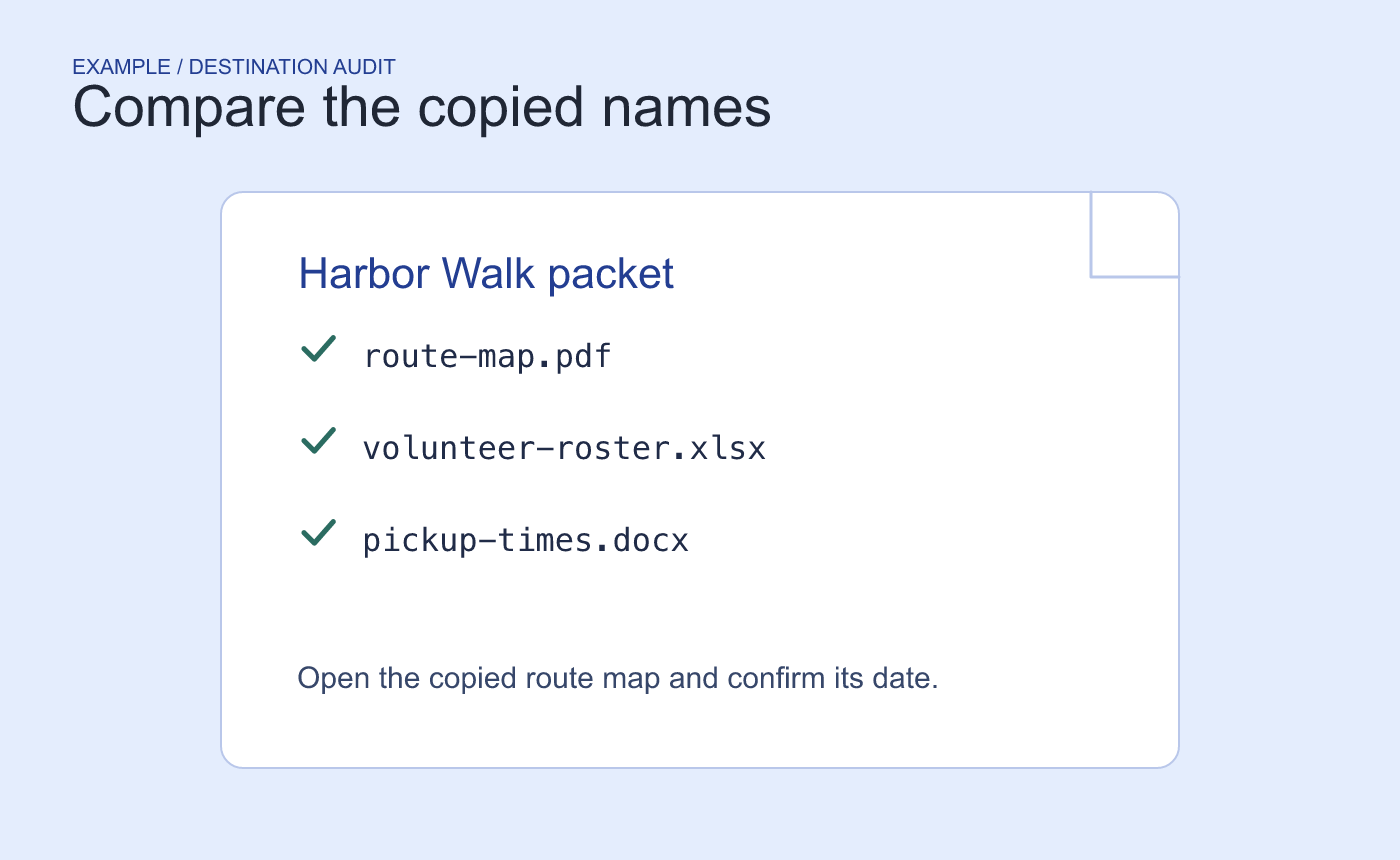
Example destination check. Match these three filenames after copying.



