
Add a PDF watermark to communicate an agreed status such as “DRAFT — FOR REVIEW.” Apply it to a review copy, then check that it remains visible without obscuring the content people need to read. Inspect where the mark falls on the page; its placement options depend on the editor.
Keep an unmarked source available. That gives you a clean starting point when the review status changes.
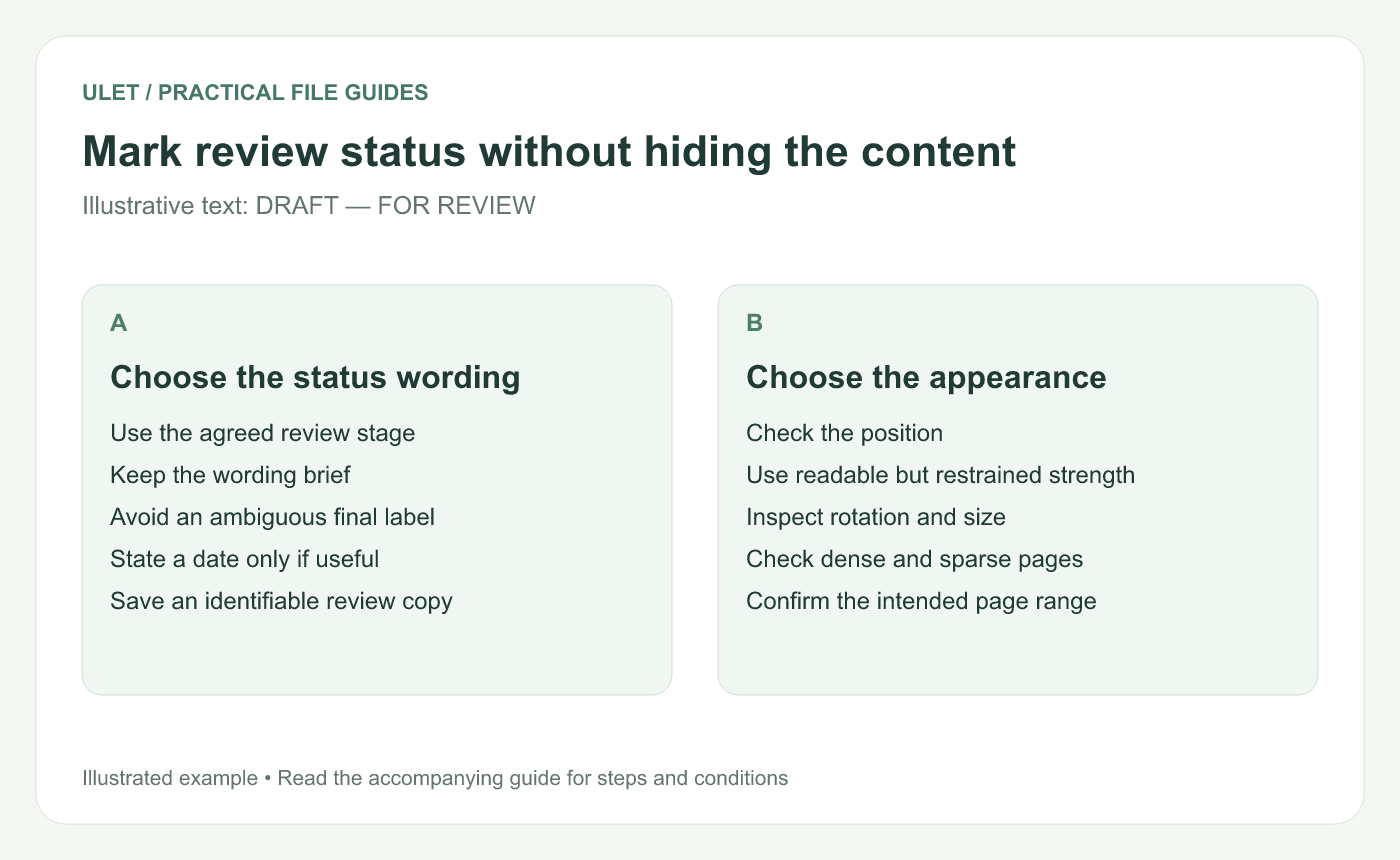
Mark review status without hiding the content. Original instructional illustration; example text and diagrams are not software screenshots.
Choose wording that means something to the reader
Use the status your team has agreed, rather than adding a decorative word that readers must interpret. “Draft — for review” describes a different stage from “Approved.”
If you include a date, explain whether it is the issue date or review deadline. A filename and a short delivery note can provide detail that does not fit comfortably on every page.
Set the appearance on a sample page
Open the intended PDF copy in Ulet.
Use the watermark controls to enter the status text.
Choose its size, rotation and opacity using the available controls.
Inspect the mark against the page's actual text and figures.
Confirm the intended page coverage before saving.
Adobe's watermark guide likewise describes text or image marks with adjustable appearance and placement. The exact controls depend on the editor; use the preview in the version you are working with. PDF watermark guide.
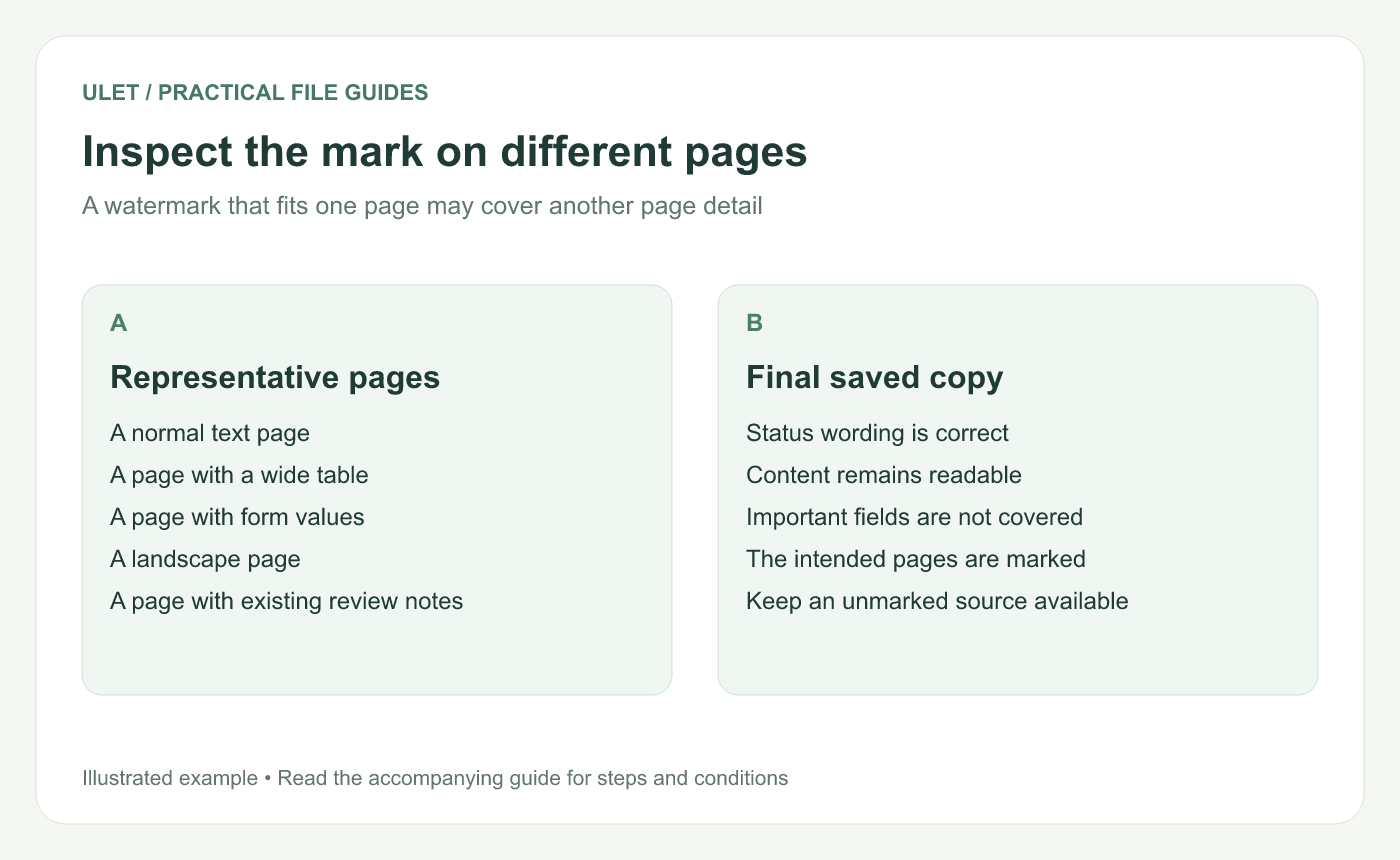
Inspect the mark on different pages. Original instructional illustration; example text and diagrams are not software screenshots.
Check pages with different content
A pale mark that works on body text can be difficult to see over a picture. A stronger mark can make a dense table hard to read. Inspect representative pages before accepting a single setting for the document.
Check small labels, form values, signatures already visible on the page and existing review annotations. The status mark should not compete with the information the reviewer needs.
Verify the saved review copy
Save and reopen the PDF. Confirm the wording, coverage and readability on the inspected pages. If the file will be printed, check a representative printed page too.
A visible status mark communicates how the document should be treated in the review. It does not decide who can open or edit the file; manage those requirements through the actual sharing workflow.
Update the status from the clean source
When a new review round begins, start with the intended source and apply the current mark deliberately. Avoid stacking successive status labels until none is clear.
Ulet provides local PDF work on Windows and macOS within its all-in-one app, with free basic editing. Keep the issued review copy and its unmarked source clearly identified.


