
Add PDF bookmarks for the sections readers need to reach repeatedly, give them descriptive names and check where each one lands. A short, accurate outline is more useful than a bookmark for every paragraph.
Start with the document's main headings. Use a second level only when a major section needs a few useful entry points.
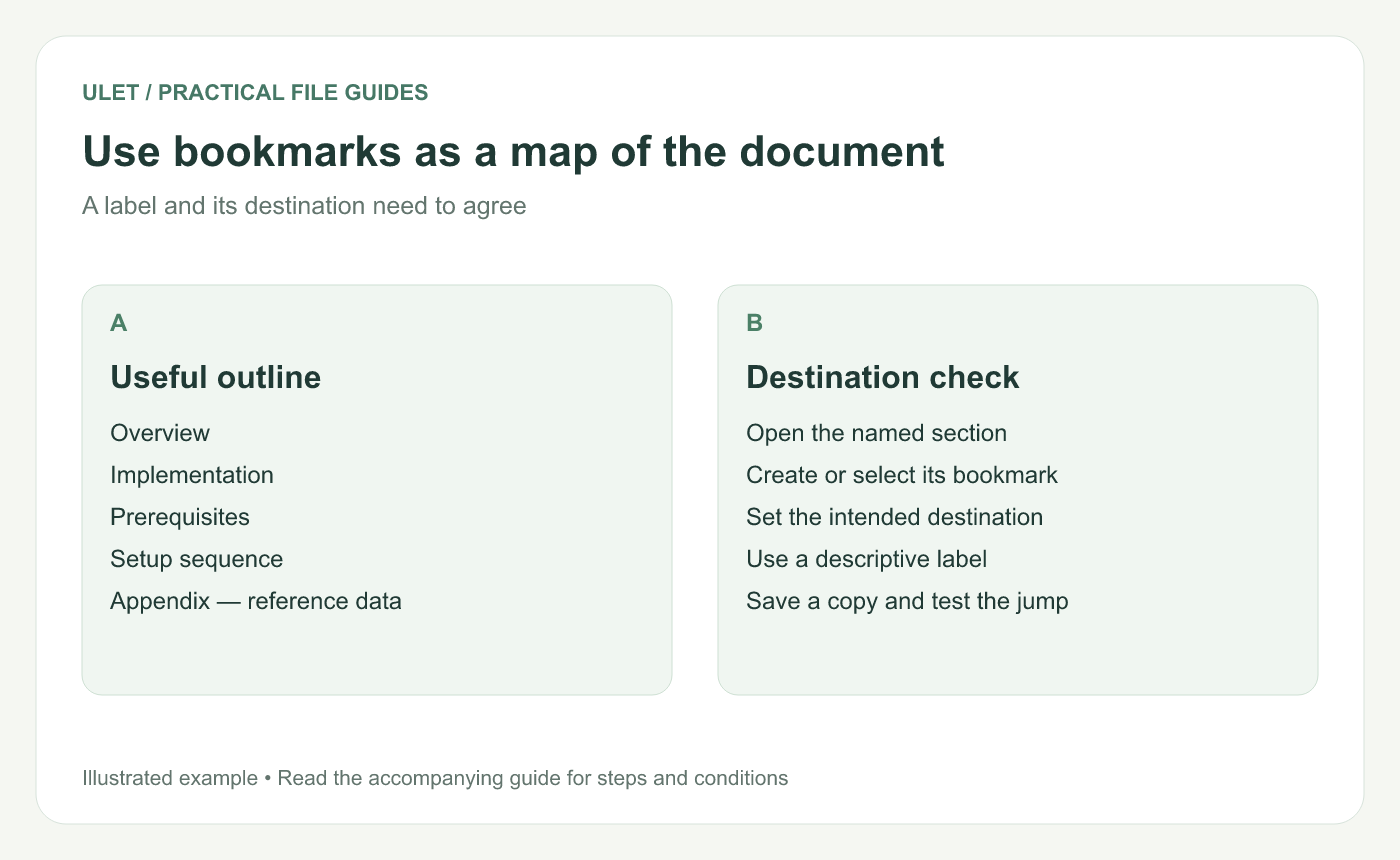
Use bookmarks as a map of the document. Original instructional illustration; example text and diagrams are not software screenshots.
Make a small outline first
For an illustrative implementation guide, use Overview, Implementation and Appendix — reference data. Under Implementation, add Prerequisites and Setup sequence if readers need those separately.
Keep sibling labels comparable. “Prerequisites” and “Setup sequence” describe sections; “Read this!” gives much less information.
Adobe describes PDF bookmarks as labeled links in a navigation panel that lead to a view or page. That is the distinction this guide uses. PDF bookmark explanation.
Set the label and destination deliberately
Open the local PDF and find the intended section.
Open Ulet's bookmark-editing controls.
Add a bookmark and give it the planned name.
Check its destination page against the section heading.
Place a child entry under the correct parent when needed.
Save the edited bookmark outline as a copy.
Use the current version's displayed controls to confirm the destination. A bookmark added while another page is active can acquire the wrong starting location.
Keep the hierarchy easy to scan
Avoid nesting so deeply that the section is difficult to find. If most entries have only one child, consider whether that extra level helps the reader.
Keep the order consistent with the document unless there is an explicit reason for a different navigation structure. Use wording that remains recognizable when a page number changes.
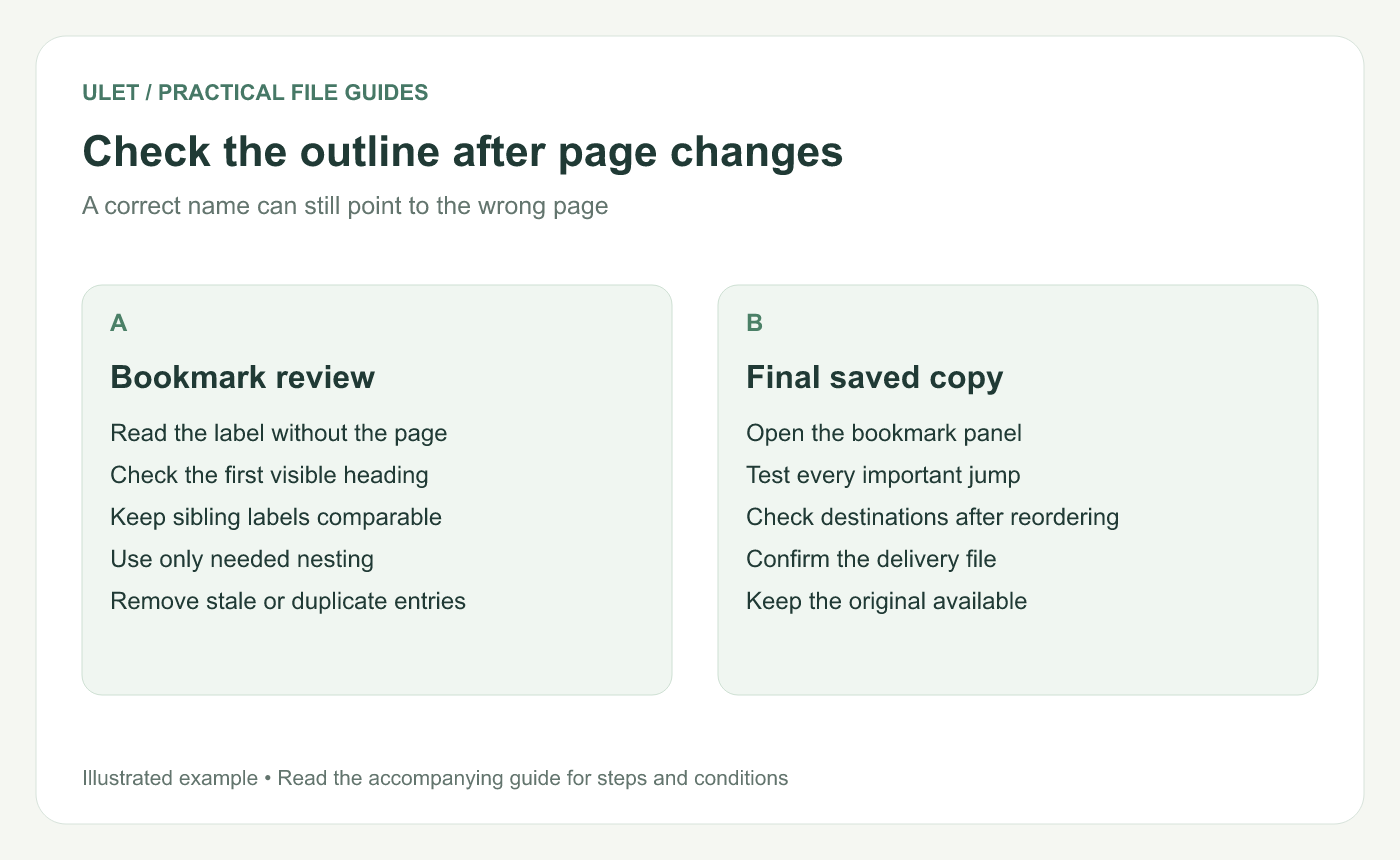
Check the outline after page changes. Original instructional illustration; example text and diagrams are not software screenshots.
Test the saved outline
Open the saved copy, expand the relevant groups and click each important bookmark. Confirm the first visible heading matches the label. Check that the jump is useful at the displayed view, not merely somewhere on the right page.
Repeat the destination check after inserting, deleting or reordering pages. A well-written label can conceal an outdated destination.
Keep the outline with the delivered file
Confirm the copy you send contains the updated bookmarks. If the PDF comes from a maintained source with its own heading structure, update that source where appropriate so the next export can preserve a useful outline.
Ulet provides local PDF work on Windows and macOS within its all-in-one app. Keep the original and revised copy identifiable while checking the navigation.


