
A useful five-slide project update answers five questions in order. Where is the project now? What changed? What happens next? What could affect delivery? What decision does the audience need to make?
You can build this structure in Ulet's presentation editor on Windows or macOS, using a new deck or an existing PPTX. Basic presentation editing is free, and local files can be opened and saved on your computer. Explore Ulet Presentation Maker.
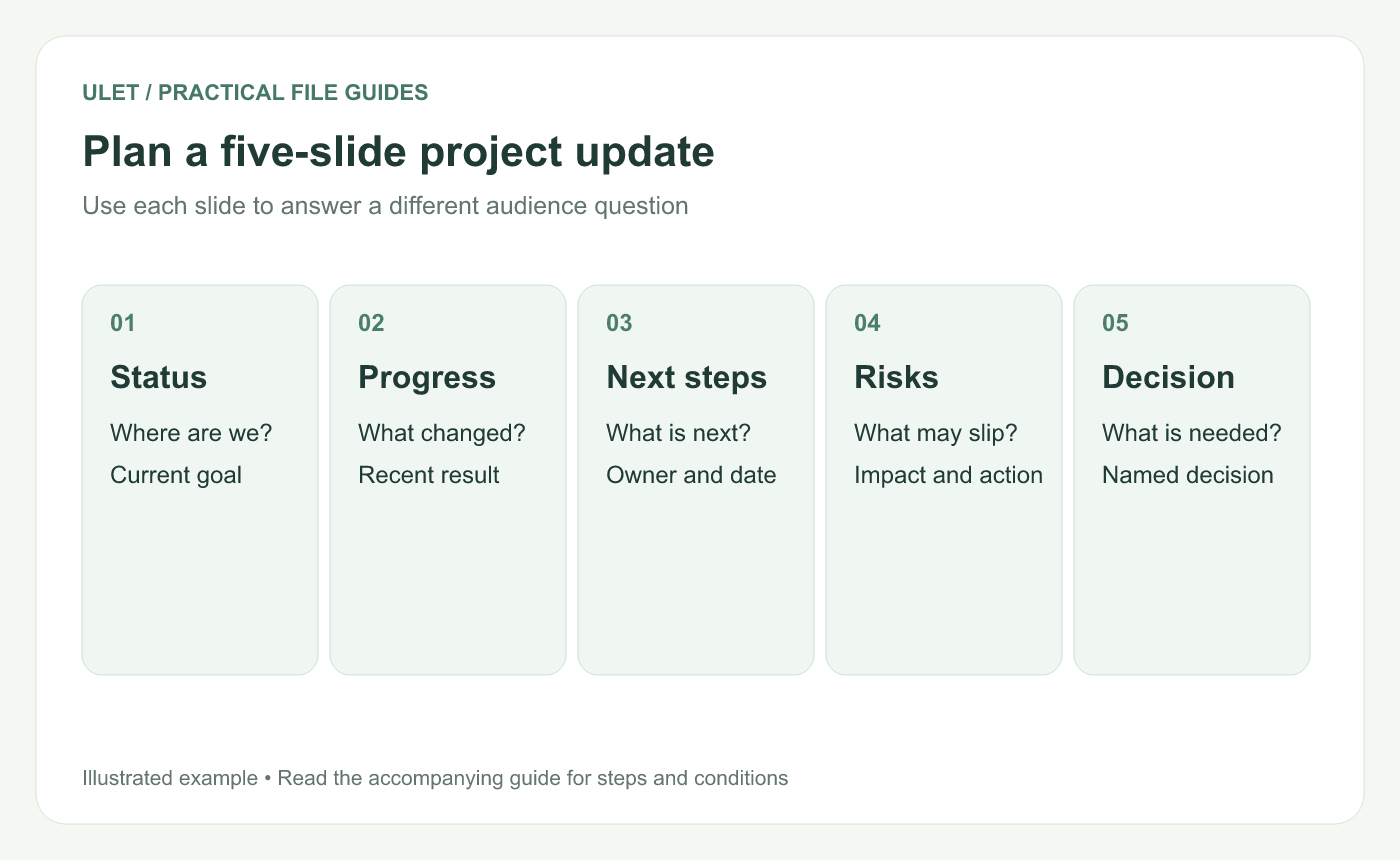
An original planning outline that assigns a different audience question to each slide.
Decide what the meeting needs to achieve
Write one sentence describing the desired outcome before choosing a template. For example, “Agree on a review date for the remaining report section.” This keeps the presentation focused on the discussion the audience must have.
Choose a reporting period and a status date. A weekly update and a full project review need different levels of detail. Five slides work well when the audience already knows the project and needs a concise update.
Slide 1 — State the current status
Include the project name, reporting period, current objective, and a short status statement. The title should communicate the main point directly.
Report draft is ready for review, with one section awaiting source data.
Add one line explaining what that means for the next milestone. If your team uses a status color, pair it with words so the meaning remains clear in print and to readers who cannot distinguish the colors.
Slide 2 — Show the progress that matters
Choose completed work that changes the audience's understanding of the project. A list of every activity can hide the result. Tie each item to the objective or deliverable.
Activity wording | Result wording |
|---|---|
Worked on the report | Three of four draft sections are ready for review |
Met with the data team | Confirmed the source for the remaining chart |
Updated the schedule | Assigned an owner and review date to the final section |
These statements are sample project content. Replace them with information you can substantiate from your own project records.
Slide 3 — Name the next actions
Give each next action an owner, a date, and a visible completion condition. This makes the slide useful after the meeting.
Next action | Owner | Due | Done when |
|---|---|---|---|
Receive final chart data | Leo | Wednesday | Source file is in the review folder |
Update the remaining section | Maya | Thursday | Section is ready for reviewer comments |
Review the complete draft | Review team | Friday | Open comments have assigned follow-up actions |
Use actual calendar dates in your finished deck. Weekday-only examples can become ambiguous when someone reads the file later.
Slide 4 — Explain the risk and response
Describe the condition that may affect delivery, its likely impact, and the proposed response. Give the risk an owner so the audience knows who is following it.
If the chart data arrives after Wednesday, the complete draft review may move. Leo will confirm delivery with the source team before the next checkpoint.
Keep uncertainties visible. A precise-looking percentage is useful only when you have a defensible way to estimate it.
Slide 5 — Ask for a specific decision
End the update with the decision, the person or group who can make it, and the deadline. If no decision is needed, state the next check-in and what the team expects to report then.
Decision requested from the review lead — approve Friday as the complete-draft review date once the source team confirms Wednesday delivery.
The request should follow from the information on the earlier slides. Add supporting detail when the audience needs it to assess the trade-off.
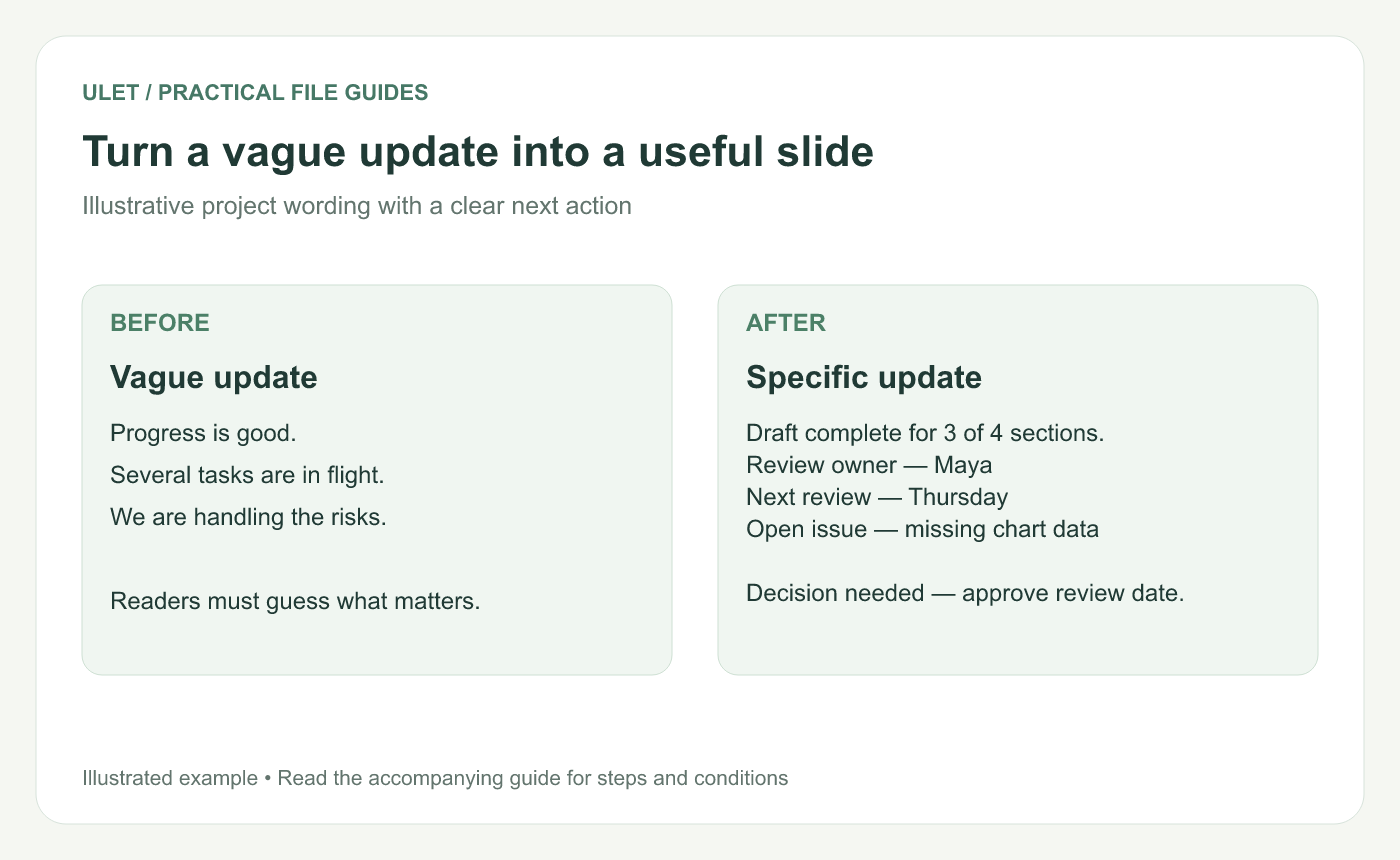
The example shows how concrete wording gives the audience something to discuss and act on.
Build the deck in Ulet
Create a presentation or open an existing
.pptxfile.Add or arrange five slides in the order described above.
Write the slide titles before adding detailed content.
Use text boxes, shapes, and images where they help explain the status.
Review the deck in presentation view, then save an editable PPTX copy.
Keep one main message on each slide. Use the same placement for titles and supporting information so the reader can follow the structure. When a table becomes difficult to read, reduce its scope to the few rows needed for the decision.
Check the presentation before sharing
Confirm that the reporting date and owner names are current.
Check that sample wording has been replaced with project facts.
Review fonts, image placement, text overflow, and slide order.
Open the saved PPTX again and inspect the slides affected by your edits.
Check the file on the presentation computer when a particular display or font setup matters.
Frequently asked questions
Does every project update need five slides?
No. Five slides provide a useful starting structure. A short written update may be enough for a small change, while a decision with several options can require additional evidence.
Should I show every task in the presentation?
Use the slides for the results, risks, and decisions relevant to the meeting. Keep the detailed task list available as a separate reference.
Can I keep the presentation editable for the next update?
Save the deck as PPTX and keep a dated working copy. For the next reporting period, update the evidence and decision request as well as the date.
Start with the five questions, write a clear answer on each slide, and then use Ulet to build the presentation around those answers. Get Ulet for Windows or macOS.


