
If a quantity column looks right but its total is wrong, check whether some entries are stored as text. Add a helper column with =ISNUMBER(A2) and copy it alongside the data. FALSE means the referenced value is not numeric; it does not by itself tell you why.
Start with a few cells you can verify from the source. Avoid converting whole sheets just to make a total change.
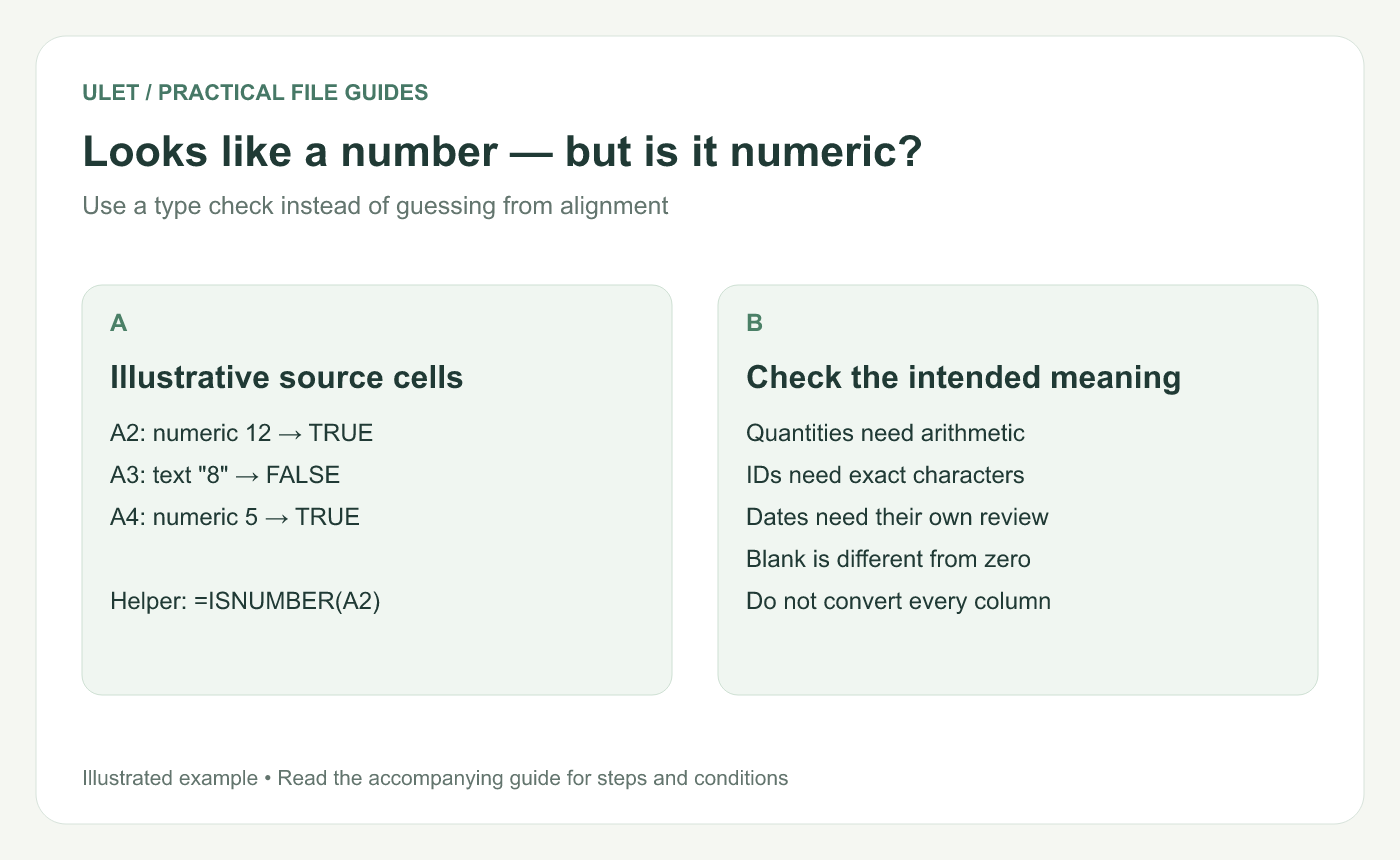
Looks like a number — but is it numeric?. Original instructional illustration; the examples are not software screenshots.
Try three known quantities
Cell | Value and storage | ISNUMBER result |
|---|---|---|
A2 | Numeric 12 | TRUE |
A3 | Text containing 8 | FALSE |
A4 | Numeric 5 | TRUE |
Microsoft documents that ISNUMBER tests the value without converting numeric-looking text. That makes it useful for this diagnosis. IS functions reference.
Use the formula result and the source meaning together. A blank, an error or ordinary text can also return FALSE. Cell alignment and number formatting are only clues.
Convert only values that should be numbers
For a simple text quantity such as 8, try =VALUE(A3) in a spare cell. In Excel, VALUE converts a recognized numeric text string to a number and returns an error for unrecognized input. VALUE reference.
Compare the converted result with the source. Check decimal and thousands separators, minus signs and any currency or unit suffix. The characters 1,200 need a known regional convention before you decide what number they represent.
Changing a cell's display to Number is not a reliable way to confirm conversion. Run the type check on the resulting value.
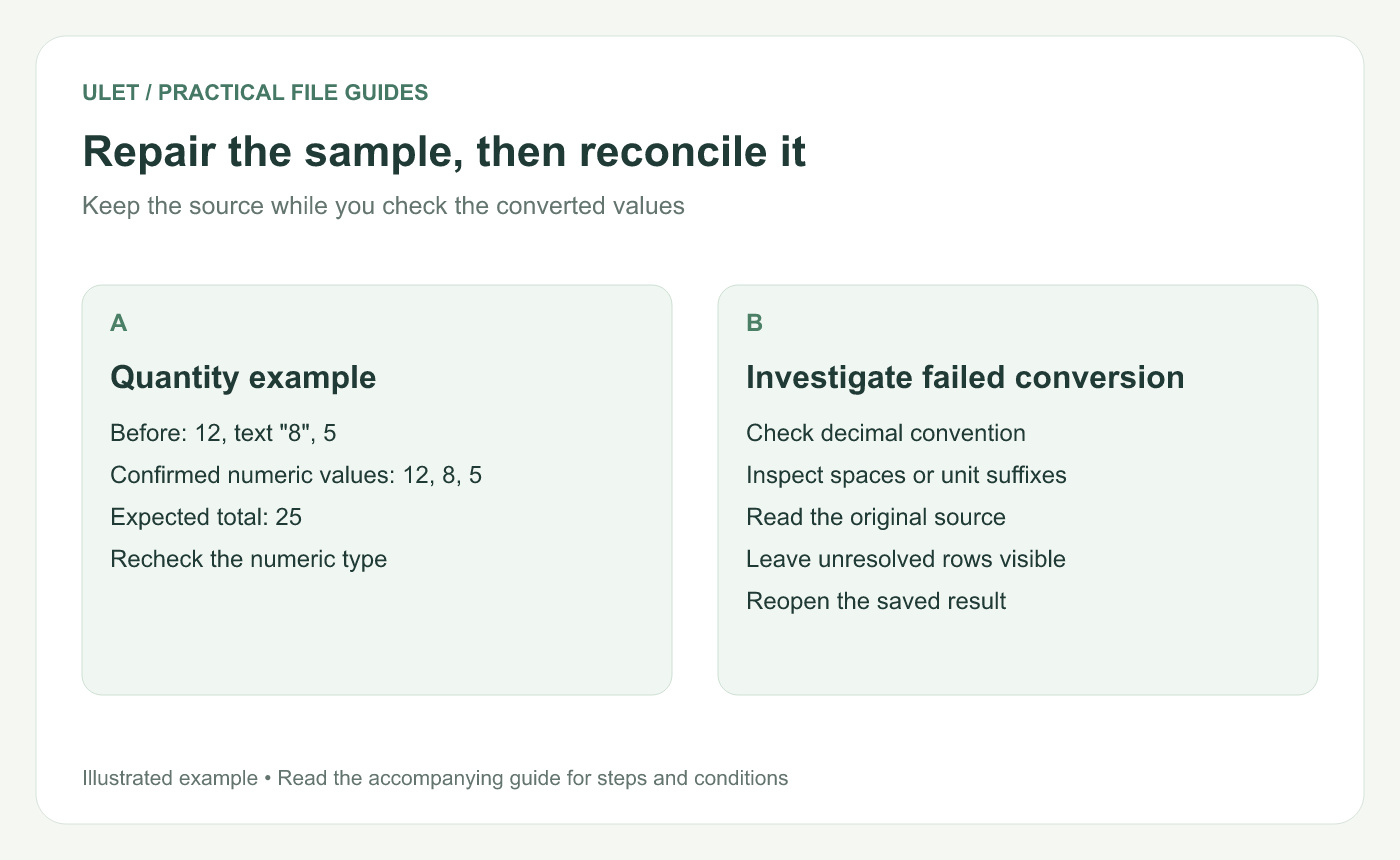
Repair the sample, then reconcile it. Original instructional illustration; the examples are not software screenshots.
Check both types and arithmetic
After the example's three entries are numeric, =SUM(A2:A4) should be 25. Recheck the individual values as well as the total. Keep unresolved rows marked so they do not disappear into an apparently corrected summary.
If you use a helper column, decide how the confirmed results will become the workbook's working values. Preserve the original entries until that handoff is checked.
Keep identifiers out of the conversion
A product code such as 00127 is a different case. It may need text storage to retain its characters. Follow the leading-zero guide for that task.
Ulet lets you review formulas and edit the XLSX locally on Windows and macOS. Try the three-cell example in the editor you will use, then save and reopen the repaired copy before applying the same approach to a larger import.



