
A project folder appears to contain its logo. In fact, assets/logo.png points to a file in a separate brand library. If you only copy the project, the recipient might get the link without its target.
Make a read-only inventory
In Terminal, change to your project folder and run pwd to check the location. Then list symbolic links.
find . -type l -printFor an entry you recognize, inspect the target with readlink "./assets/logo.png". This prints the recorded target string. If it is relative, read it from the directory that contains the link.
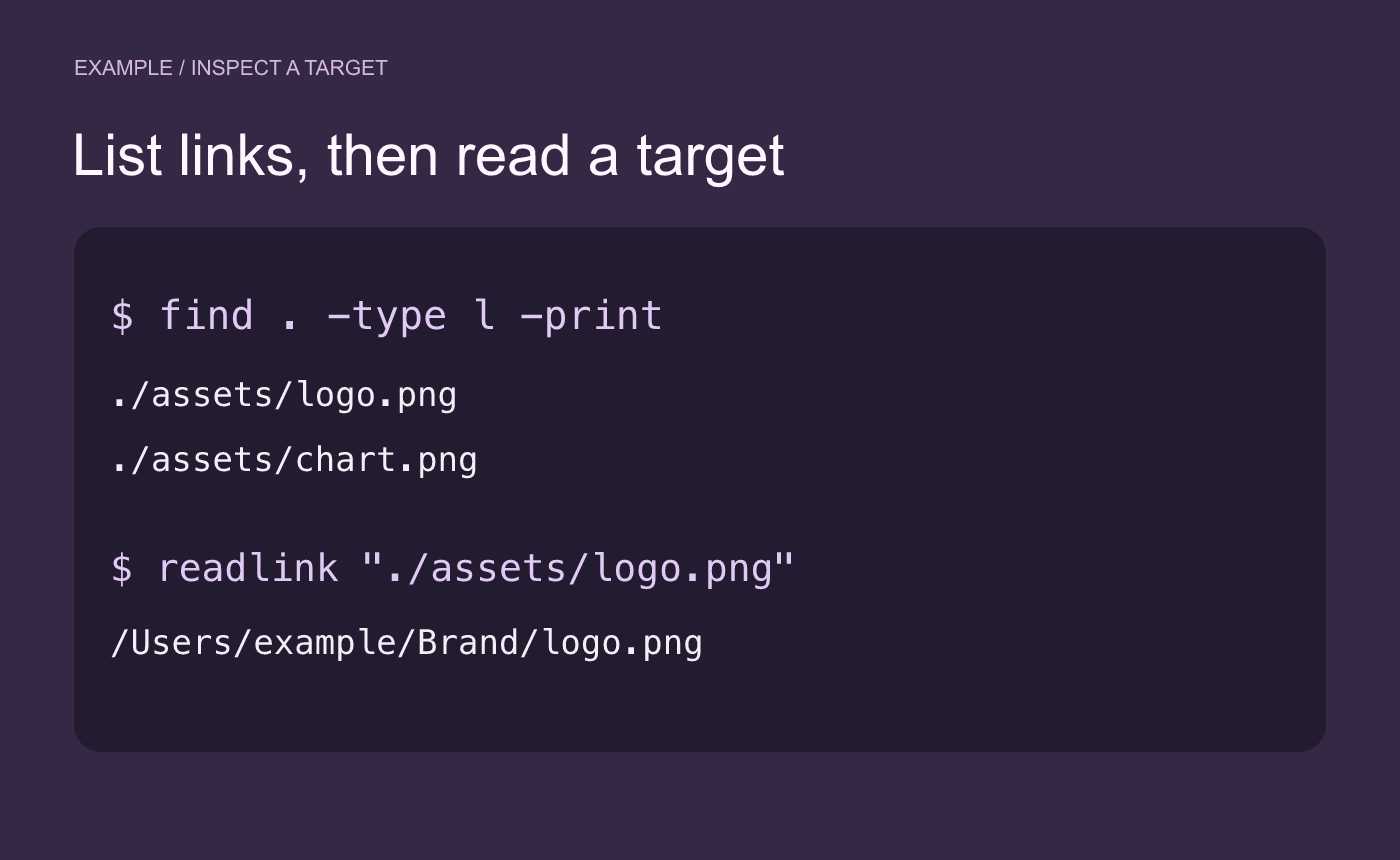
Example inventory. Inspect the target of each link you plan to ship.
Decide which links travel with the project
A relative link to another file inside the project can keep working if the folder structure is preserved. A link to a location outside the project needs a separate decision. You might include an approved copy of the target or tell the recipient exactly which external dependency they need.
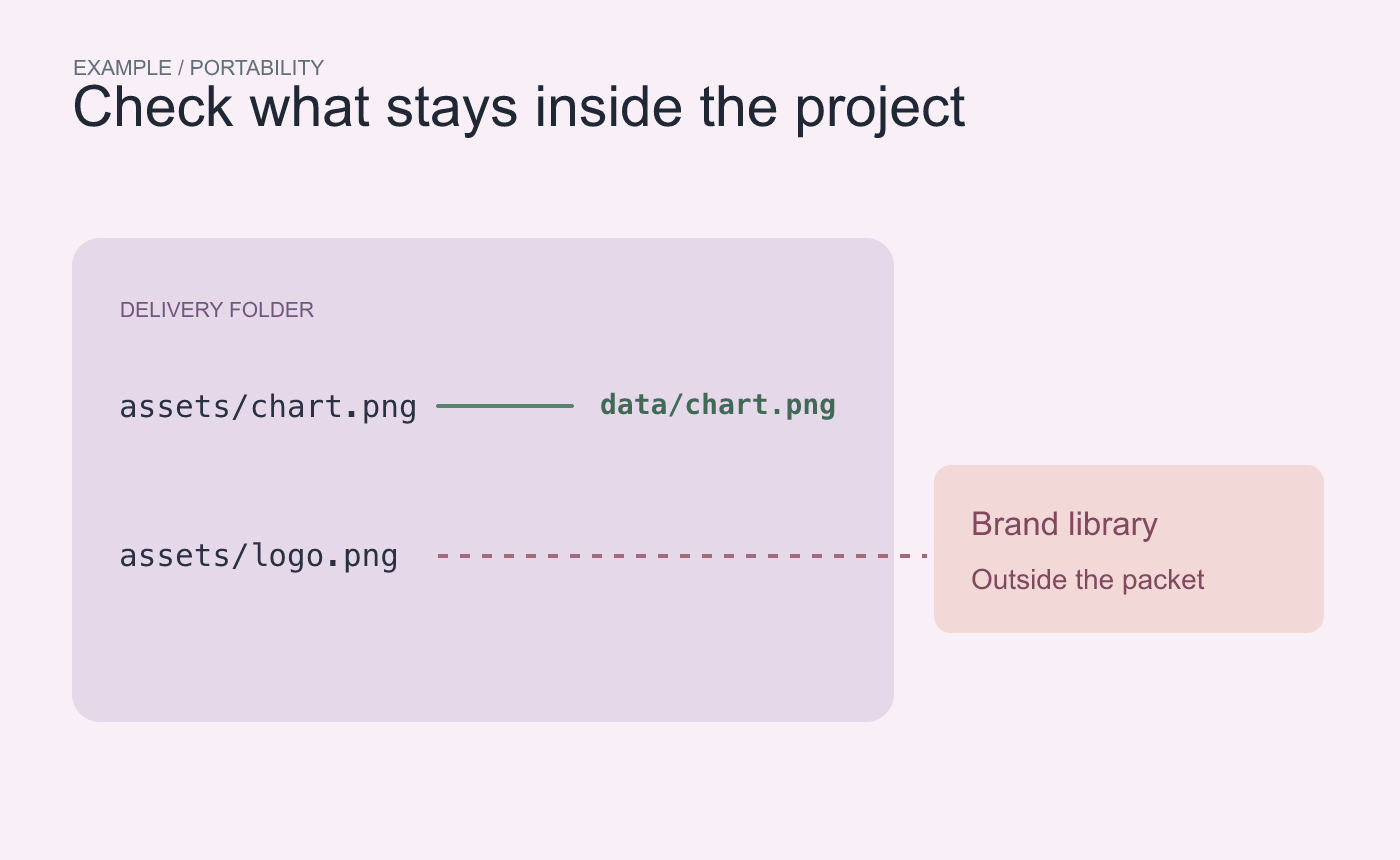
Example portability check. An outside target needs a separate handoff decision.
Open a copy of the handoff in a different location. Inspect the links again and open the linked files or assets from that copy. A link that opens on your own Mac can still depend on a folder the recipient will not have.
Reference Apple’s find manual. For your installed commands, see man find and man readlink.



