
A dark emblem on the Orchard label crosses from white paper into an orange panel. Check that exact transition in overprint preview before approving the label artwork.
Hold the view and change the simulation
Open the PDF in Acrobat Pro. Choose All tools > Use print production > Output preview. Zoom to the emblem and select the Simulation Profile that matches the intended output. Compare the same region with Simulate Overprinting on and off. Keep the page, zoom and profile fixed so you can attribute the change to the simulation toggle.
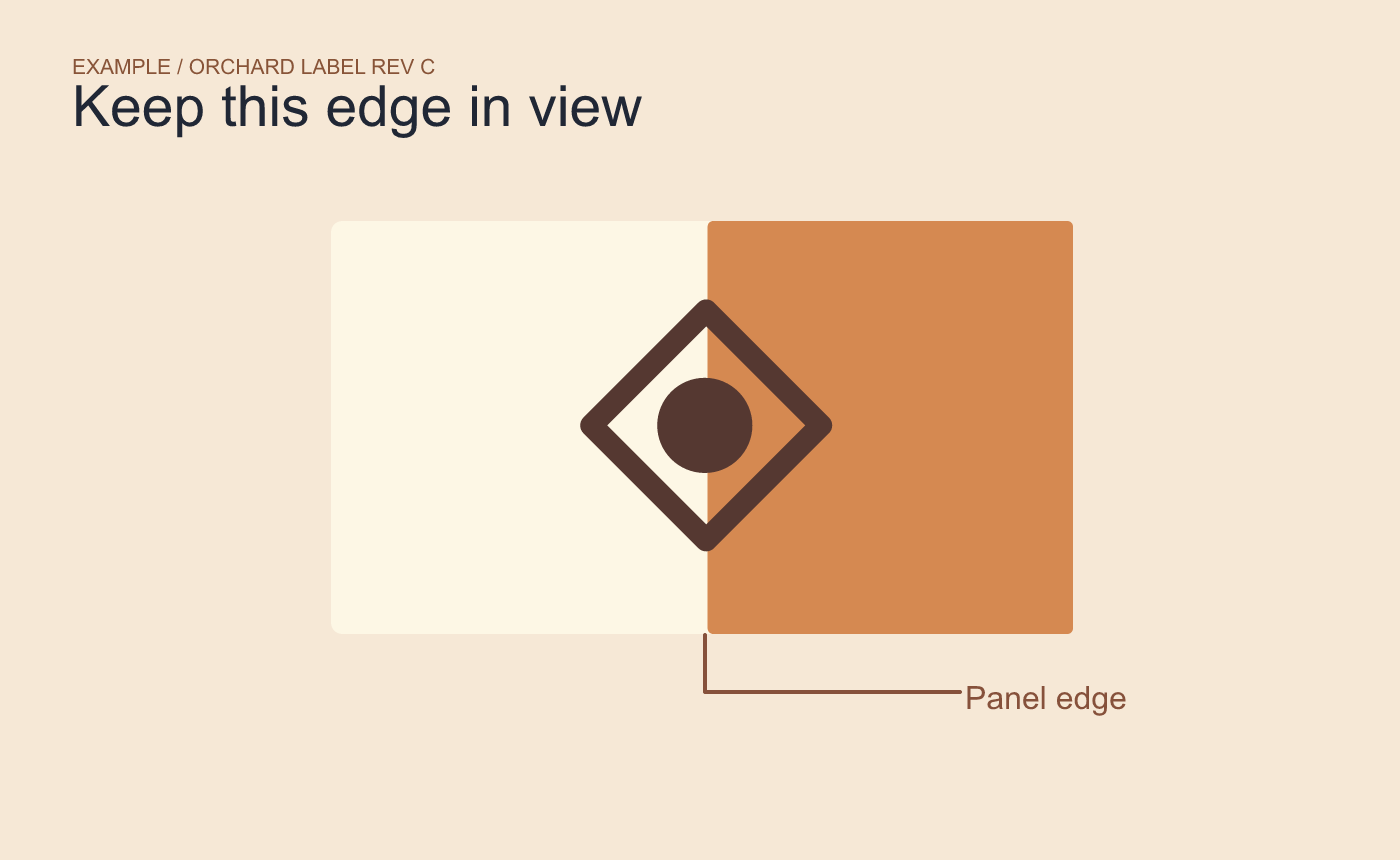
Illustrated check area. Use the same position and zoom for both previews.
Record what someone else can check
For a proof note, identify the revision, page and exact detail. Describe the change in the overlap or edge. For example, write “Orchard label Rev C, page 1, emblem at orange panel edge” and record the profile used. If the result is unexpected, examine that artwork’s overprint settings in the design source.
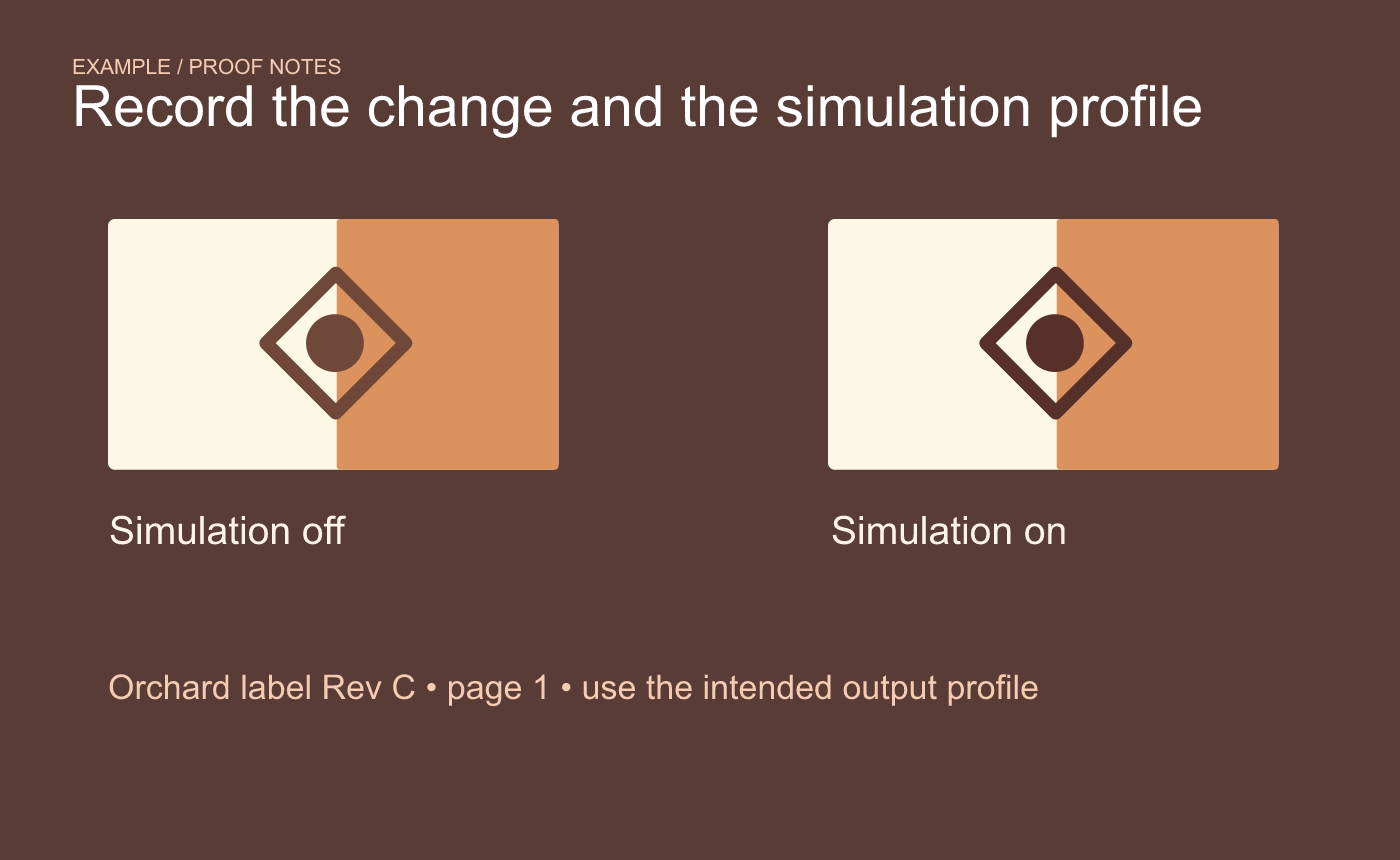
Example proof note. Record the preview settings and the specific change you observed.
Check a production proof for critical artwork. The screen simulation depends on the selected profile and may differ from the printer’s final process.



