
If your folder contains final.docx, final-new.docx and final-really-final.docx, start by agreeing on what the filename needs to tell people. For many teams, the project, document purpose, date and version number are enough.
A practical pattern is project-document-YYYY-MM-DD-vNN.ext. For example, atlas-proposal-2026-11-05-v01.docx tells a colleague much more than proposal-final.docx.
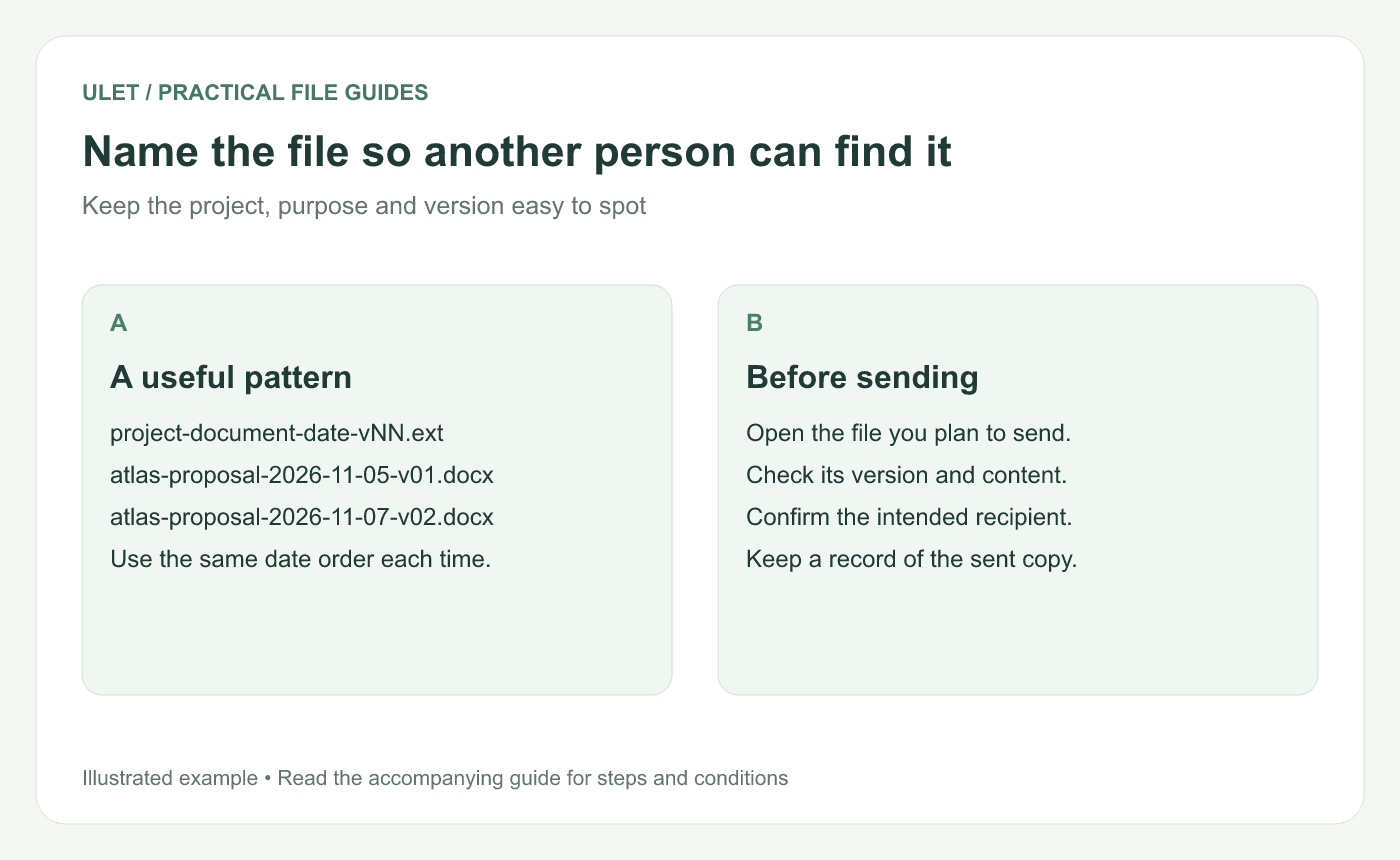
Pick a pattern the people using the folder can follow consistently.
Choose what the date and version mean
The date might mean the day the file was issued or the day that particular copy was created. Choose one meaning and write it in a short folder note. Use an unambiguous year-month-day order so names sort predictably.
A version number is useful when more than one copy can exist on the same date. Increase it for the changes your team treats as a new issue. You don't need to create a new numbered file for every keystroke.
Keep drafts and sent copies easy to tell apart
Use a working folder for ongoing edits. When you send a deliverable, retain a copy in a dated sent folder and record who received it. That gives you a way to answer, “Which version did we send?” without stopping work on the next revision.
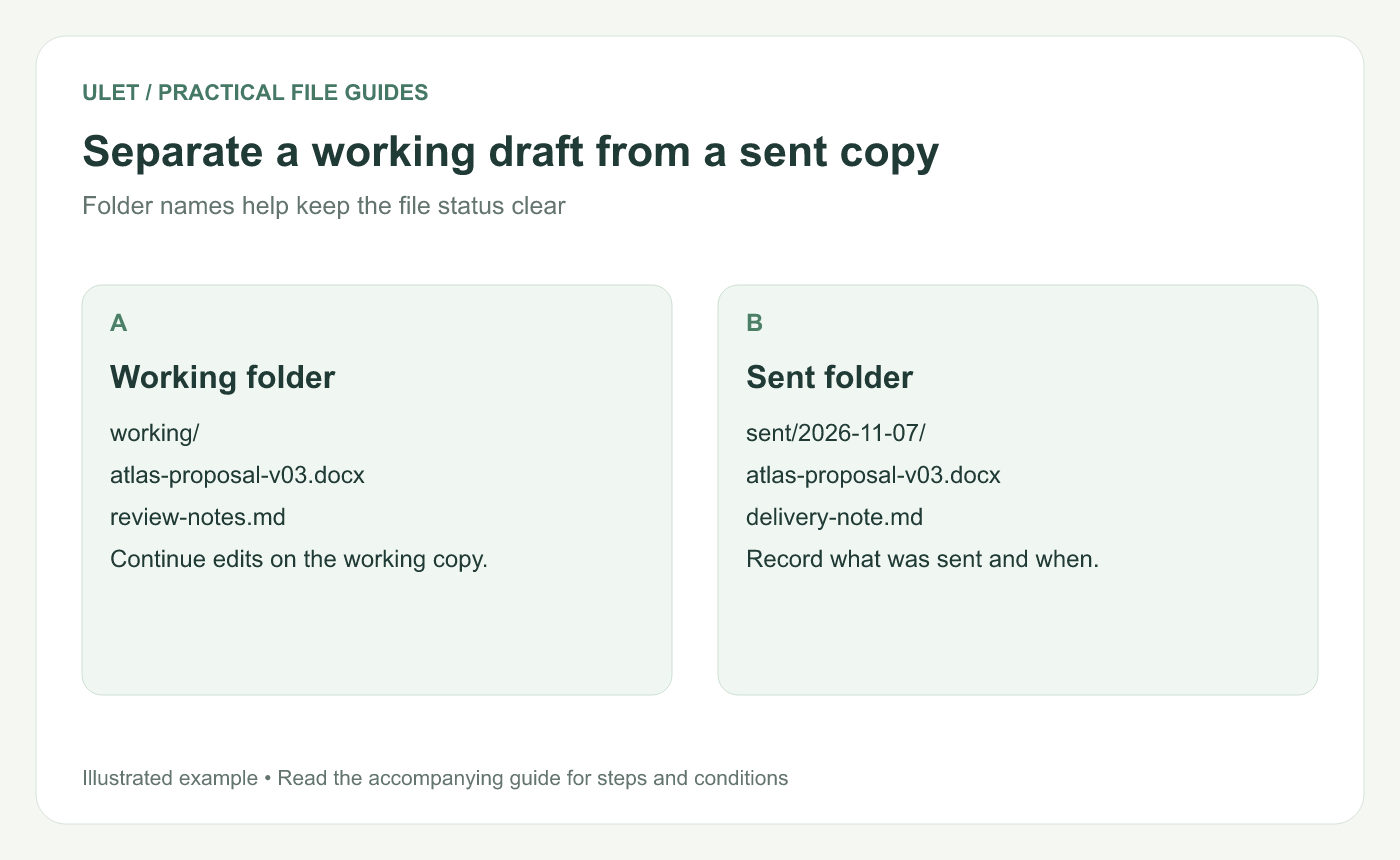
The folder location adds context to the filename.
A small handoff record helps
Date | File | Sent to | Purpose |
|---|---|---|---|
2026-11-07 | atlas-proposal-v03.docx | Project lead | Scope review |
2026-11-10 | atlas-proposal-v04.docx | Review team | Revised scope |
Use actual recipients and dates in your own record. A short Markdown note or a local spreadsheet is enough for a small project.
Rename carefully when files link to one another
A Markdown note may link to an image or another note using its filename. Renaming the target can break that link. After a rename, check any references you know depend on the old name.
Keep the file extension that matches the format. Changing .csv to .xlsx in a name does not create an XLSX workbook. Use your editor's saving or export options when you need a different format.
Before you send the file
Open the exact copy you intend to attach.
Check its title, version information and latest changes.
Confirm that the filename matches the content.
Check the attachment after adding it to the message.
Keep a record of the issued copy.
Ulet lets you work with documents, spreadsheets, presentations, PDFs and Markdown in one desktop app. Use Save As when you need a separately named local copy, then reopen that copy before sharing it. Get Ulet for Windows or macOS.
For a note folder with linked resources, the Markdown writing guide includes an image-folder example you can check after moving files.



